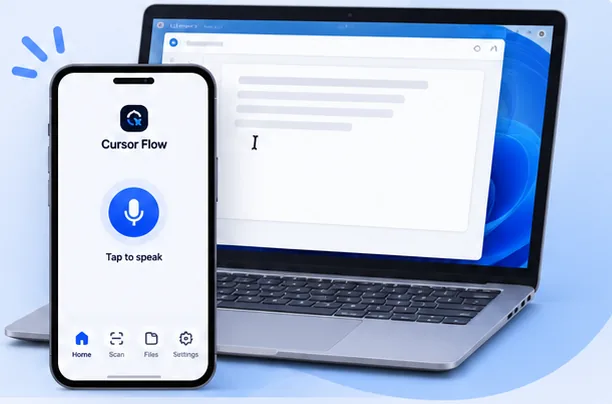
 Cursor Flow
How to Voice Type Google Sheets from Android to Windows
Enter Google Sheets cell text from an Android phone while the spreadsheet stays open on Windows. Learn the focus checks for numbers, dates, and rows.
On this page
- Can Google Sheets voice type?
- What you need before starting
- How to voice type into a Google Sheets cell
- How to fill a row one cell at a time
- Numbers, dates and dropdowns need extra review
- Use the phone as a quiet spreadsheet input
- Cursor Flow versus Windows voice typing
- Fixes when Google Sheets voice typing is not working
- Privacy and spreadsheet safety
- How to do this with Cursor Flow
- FAQ
- FAQ
- Keep reading
The free plan includes 2,500 dictation words a week, typing on your phone into your PC cursor, phone-to-PC sending of files, images and clipboard, and Scan.
This workflow is best for adding notes, labels, short descriptions and occasional values. It does not automatically understand your column headers or turn one spoken sentence into a complete structured row.
Can Google Sheets voice type?
Google's official Sheets guidance explains how to edit a cell: click or double-click it, enter data, and press Enter. It does not document a Sheets microphone control. A current spreadsheet voice-typing guide also distinguishes Sheets from Google Docs, where Google provides a dedicated Voice typing menu.
On Windows, the built-in alternative is Windows voice typing. Microsoft says it needs an internet connection, a working microphone and a cursor in a text box. Cursor Flow is useful when the phone is the more convenient microphone, when you need to speak softly, or when you want to type on the phone and send text to the PC.
What you need before starting
-
A Windows 10 or 11 PC with Cursor Flow installed.
-
An Android phone running Android 9 or newer.
-
The same Cursor Flow account signed in on both devices.
-
One pairing between the phone and PC. Use the pairing guide if you have not connected them yet.
-
A Google Sheet open in a browser and permission to edit it.
How to voice type into a Google Sheets cell
-
Open the spreadsheet on Windows. Make sure you are in the correct file and tab.
-
Choose the target cell. Click the empty cell, or double-click an existing cell if you need to edit its contents.
-
Open Cursor Flow on Android. Confirm that the Windows PC is connected.
-
Send a short test value. Try a label such as “test” and confirm that it appears in the selected cell.
-
Dictate or type the real value. Keep one value per cell unless you intentionally want multiple lines in one cell.
-
Confirm the cell. Press Enter in Sheets, then select the next target cell before sending more text.
How to fill a row one cell at a time
A spreadsheet row usually has a structure such as Date, Category, Amount and Notes. Cursor Flow sends text to the active cell, so move through the row deliberately:
-
Select the Date cell and send the date.
-
Select the Category cell and send the category.
-
Select the Amount cell and send the number.
-
Select the Notes cell and send the explanation.
-
Review the entire row before using it in a formula, filter or report.
Do not assume that a sentence such as “taxi twelve fifty yesterday” will become a date, category and currency automatically. Cursor Flow types into the active field. Sheets remains responsible for the cell value and formatting.
Numbers, dates and dropdowns need extra review
Voice recognition can represent the same spoken number in different ways. “Twelve fifty” might become 12.50, 1250 or words. A spoken date might remain text instead of becoming a date value. If a cell has a dropdown, the inserted text must match one of the available options.
-
Check decimal points and currency values.
-
Check day and month order for dates.
-
Confirm that categories match the sheet's dropdown choices.
-
Look at the formula bar when a value seems ambiguous.
Use the phone as a quiet spreadsheet input
Hold the Android phone close and speak softly when you can speak. When you need a completely silent workflow, type the value on the phone and send it to the selected cell. Keep the spreadsheet visible on the PC so you can confirm the active cell and watch the row being filled.
This is useful for short inventory notes, task labels, customer follow-up notes and simple data entry. For a large import, a CSV or structured form may be safer than dictating hundreds of cells.
Cursor Flow versus Windows voice typing
| Choose | Windows voice typing | Cursor Flow phone to PC |
|---|---|---|
| Where you speak | Into a PC microphone | Into a paired Android phone |
| Where text appears | The active Sheets cell | The active Sheets cell |
| Silent fallback | Not the main workflow | Type on the phone and send text to Sheets |
| Cell structure | Sheets controls the cell | Sheets controls the cell |
| Automatic row mapping | No | No, send one value to the active field at a time |
Windows voice typing is a good free first test when the PC microphone is convenient. Cursor Flow is a better fit when the Android phone is closer, the room is shared, or you need a phone keyboard fallback.
Fixes when Google Sheets voice typing is not working
Privacy and spreadsheet safety
Review sensitive rows before sharing a sheet. Do not dictate private customer details in a shared environment until you understand your input mode. Cursor Flow does not change Google Sheets permissions, sharing settings or formulas.
How to do this with Cursor Flow
- Install both apps. Get Cursor Flow for Windows and Android from the download page.
- Pair once. Open the phone app and scan the QR code shown on your PC. See pairing if you get stuck.
- Click into any text field, then speak or type. Speak softly into the phone held close, or type and tap Send. The words are typed at your PC cursor, in the app you already use.
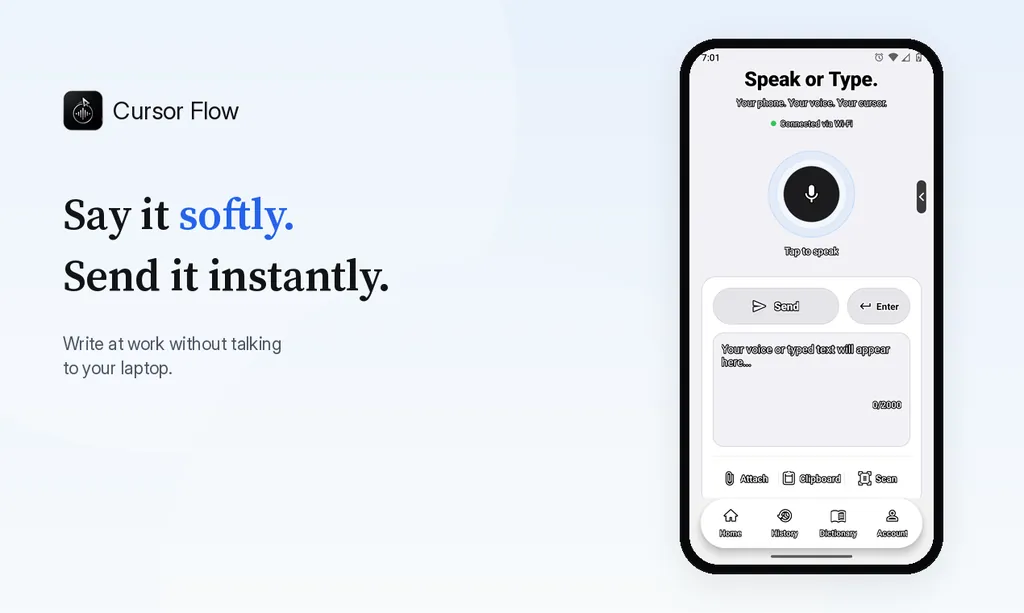
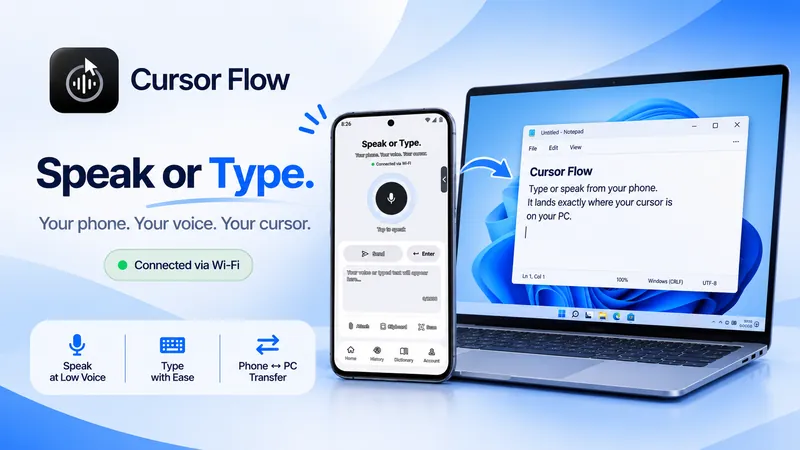
The free plan includes 2,500 dictation words a week, typing on your phone into your PC cursor, phone-to-PC files, images and clipboard, and Scan. See pricing, how phone to PC works, and typing at the cursor.
FAQ
FAQ
Does Google Sheets have built-in voice typing?
Google Sheets does not document the same Voice typing menu that Google Docs provides. You can still enter text into a selected cell with Windows voice typing, Android keyboard dictation, or Cursor Flow.
Can I voice type Google Sheets from Android to Windows?
Yes. Pair the Android phone and Windows PC in Cursor Flow, click the target Google Sheets cell, and dictate or type from the phone. The text appears in the active cell.
Can Cursor Flow fill a whole Google Sheets row automatically?
No. Cursor Flow sends text to the active field. For a structured row, select each cell, send its value, confirm it, and review the row before using it.
Why are my spoken numbers or dates wrong in Sheets?
Speech recognition can represent numbers and dates in different ways, and Sheets may store them as text. Check decimal points, date order, currency and cell formatting before continuing.
Can I type on my phone instead of speaking?
Yes. Type on the Cursor Flow phone interface and send the value to the active Google Sheets cell. This is useful when you need a silent data-entry workflow.
- 57languages
- 2,500free words a week
- Windows + Androidone paired workflow
 Cursor Flow