Cursor Flow
Google Docs Voice Typing Not Working? 9 Fixes That Work
Google Docs voice typing missing, stopping or not hearing you? Check browser, mic permissions, admin settings and language. 9 fixes in order.
On this page
- First, which problem do you have?
- Fix 1: Use a supported browser
- Fix 2: Check for an admin block
- Fix 3: Allow the microphone in your browser
- Fix 4: Allow the microphone in Windows
- Fix 5: Choose the right microphone
- Fix 6: Reduce background noise
- Fix 7: Stop it from cutting out
- Fix 8: Make voice commands work
- Fix 9: Restart and test
- Still not working? Other ways to dictate into Google Docs
- Prevent it from breaking again
- How to do this with Cursor Flow
- FAQ
- Keep reading
These steps are based on Google's voice typing help page and Microsoft's guide to microphone permissions in Windows, checked on 10 November 2026.
First, which problem do you have?
| Symptom | Start with fix |
|---|---|
| "Voice typing" missing from the Tools menu | 1, 2 |
| Mic icon appears but nothing types | 3, 4, 5 |
| "We're having trouble hearing you" | 4, 5, 6 |
| Voice typing keeps stopping | 7 |
| Commands like "select paragraph" type as words | 8 |
| Works on one PC but not another | 2, 4 |
Fix 1: Use a supported browser
Google lists the latest versions of Chrome, Edge and Safari. If you are on Firefox or an old browser version, the option may not appear or may not work. Update your browser, or open the document in Chrome or Edge.
Fix 2: Check for an admin block
On a work or school account, your administrator can turn voice typing off. Google's page says this directly. If the option is missing only on your work account, ask your IT team. There is nothing you can change from your side.
Fix 3: Allow the microphone in your browser
When you first click the microphone, the browser asks for permission. If you clicked "Block", it will stay silent.
- In Chrome or Edge, click the icon to the left of the address bar, find Microphone and set it to Allow.
- Reload the page and try again.
Fix 4: Allow the microphone in Windows
Windows has its own microphone permissions. On Windows 11, go to Start > Settings > Privacy & security > Microphone and make sure:
- Microphone access is on.
- Let apps access your microphone is on.
- Let desktop apps access your microphone is on (browsers are desktop apps).
On Windows 10 the path is Start > Settings > Privacy > Microphone, with similar toggles.
Fix 5: Choose the right microphone
If you have a headset, webcam and laptop mic, the browser may be listening to the wrong one. In Chrome, open the site settings for docs.google.com and pick the correct mic. Also check that the mic is not muted on the headset itself.
Google also suggests checking that the microphone is not being used by another application. Close video calls, recording apps and other dictation tools, then try again.
Fix 6: Reduce background noise
"We're having trouble hearing you" can mean Docs gets audio but not clear speech. Google's own advice includes moving to a quieter room. If you cannot, use a mic closer to your mouth, like a headset.
Fix 7: Stop it from cutting out
Voice typing often stops when:
- You pause for a while.
- You click into another tab or app.
- The browser tab goes into the background.
Keep the Docs tab in front, and click the microphone again when it stops. For long sessions, speak in steady chunks and avoid switching windows. If you need to work across several apps while dictating, a system-wide tool fits better (see the last section).
Fix 8: Make voice commands work
Google's page lists three common issues:
- Commands only work in English, and your account language and document language must both be English.
- Speak slowly and pause before and after each command.
- Check the bubble near the microphone, which shows the last command Docs heard. If it heard wrong, say "undo".
Fix 9: Restart and test
If nothing else worked:
- Restart your browser.
- Restart your computer. Google lists this too.
- Test your mic in another app, like the Windows Sound settings, to rule out hardware.
If the mic does not work anywhere, it is a hardware or driver problem, not a Docs problem.
Still not working? Other ways to dictate into Google Docs
- Windows voice typing: Press Windows key + H with your cursor in the document. It types into any app, including Docs. Microsoft says it needs an internet connection.
- Your phone's keyboard: Open the Docs app on Android and use the microphone on your keyboard.
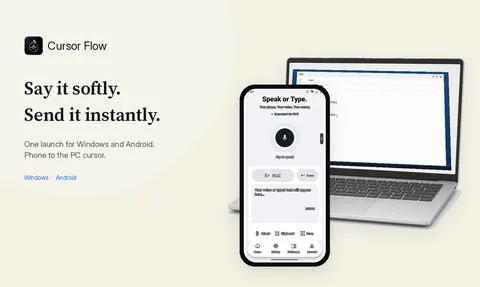
- A dictation app: Tools like Cursor Flow type at your cursor in any Windows app, so they work in Docs, Gmail and everything else. With Cursor Flow you can also use your Android phone as the mic. If text from Cursor Flow is not appearing, see text not appearing on PC, and our troubleshooting docs.
Prevent it from breaking again
Once it works, a few habits keep it working:
- Keep your browser updated: Google only supports the latest versions of Chrome, Edge and Safari.
- Do not block the mic by accident: When a site asks for microphone access, read the prompt before clicking.
- Close other mic apps before dictating: Video call apps often keep the mic open in the background.
- Use one microphone: Unplug headsets you are not using so the browser does not switch inputs.
- Bookmark Google's help page: Google updates the command list and supported languages from time to time.
If you dictate every day and these fixes feel like too much upkeep, a system-wide tool that is not tied to one browser tab may save you time.
How to do this with Cursor Flow
- Install both apps. Get Cursor Flow for Windows and Android from the download page.
- Pair once. Open the phone app and scan the QR code shown on your PC. See pairing if you get stuck.
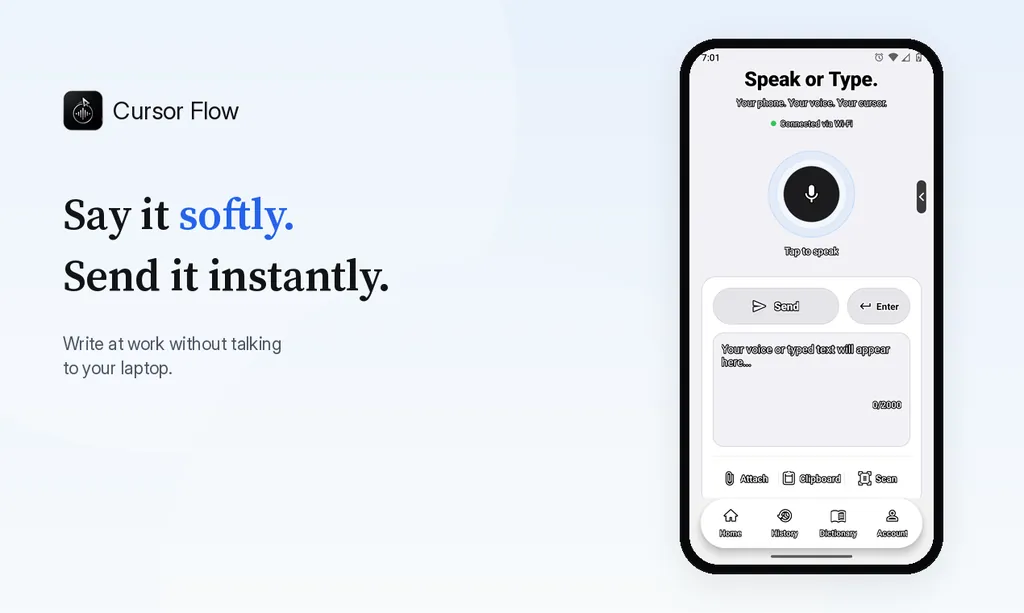
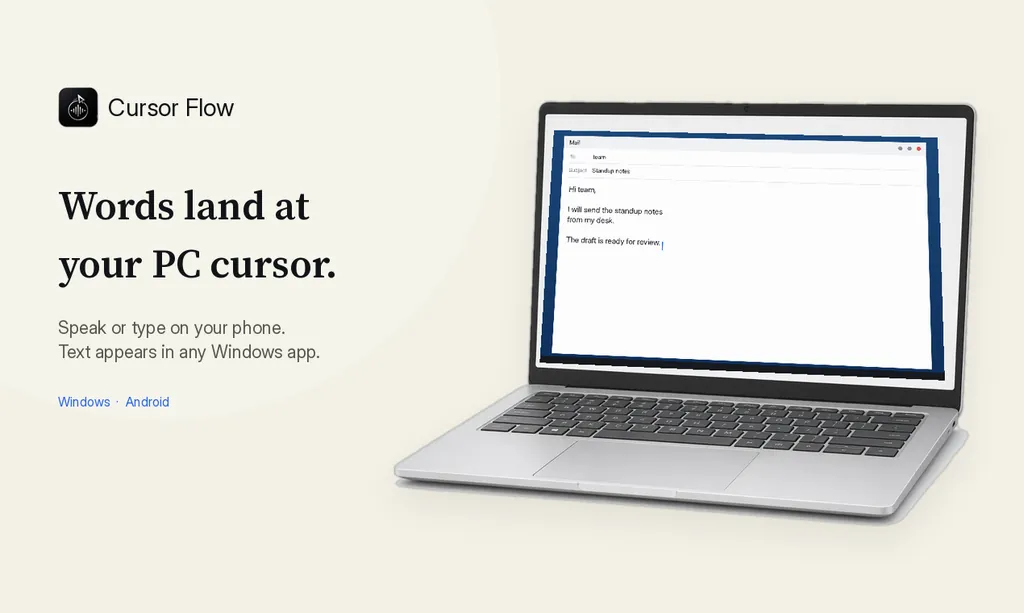
- Click into any text field, then speak or type. Speak softly into the phone held close, or type and tap Send. The words are typed at your PC cursor, in the app you already use.
The free plan includes 2,500 dictation words a week, typing on your phone into your PC cursor, phone-to-PC files, images and clipboard, and Scan. See pricing, how phone to PC works, and Gmail, Docs and Notion.
FAQ
Why is voice typing not showing in Google Docs?
Usually because you are in an unsupported browser or on a work account where the administrator turned it off. Google lists the latest Chrome, Edge and Safari as supported.
Why does Google Docs voice typing keep stopping?
It often stops after a pause, when you click outside the document or when another app takes the microphone. Click the microphone again and keep the Docs tab active.
What does "We're having trouble hearing you" mean?
Docs is not receiving audio. Check that your microphone is plugged in, allowed for the browser and not being used by another app, and try a quieter room.
Why do voice commands not work?
Voice commands only work in English, and both your account language and document language must be English. Pause before and after each command.
Want dictation that works in Docs and every other Windows app? See Cursor Flow for Gmail, Notion and Google Docs or download it free.
- 57languages
- 2,500free words a week
- Windows + Androidone paired workflow