Cursor Flow
How to Enable Voice Typing on Android (Gboard and Samsung)
Turn on voice typing on any Android phone in under a minute. Steps for Gboard and Samsung, punctuation commands, settings and quick fixes.
On this page
- Before you start
- How to enable voice typing in Gboard
- How to use it
- Punctuation commands
- Give the microphone permission (if it does not work)
- How to enable voice typing on Samsung
- Switch voice typing language
- Tips for better results
- When Gboard is not enough
- Common problems after you enable it
- How to do this with Cursor Flow
- FAQ
- Keep reading
The Gboard steps below follow Google's Type with your voice and Fix problems with Gboard help pages, checked on 10 November 2026.
Before you start
- Install Gboard from the Play Store if your phone does not already use it. Many Android phones do.
- Google notes that some steps only work on Android 7.0 and up, and that talk-to-text does not work in every language.
How to enable voice typing in Gboard
- Open an app where you can type, like Gmail, Keep or Messages.
- Tap a text field so the keyboard appears.
- At the top of the keyboard, tap Settings (gear icon). If you do not see it, tap the menu icon first.
- Tap Voice typing.
- Turn on Voice typing.
Optional settings in the same menu:
- Faster voice typing for better responsiveness.
- Advanced voice typing features on Pixel 6 or newer.
How to use it
- Tap where you want to write.
- Tap the microphone at the top of the keyboard.
- When you see "Speak now", say what you want written.
- Tap the microphone again to stop.
To replace a word, touch and hold it, tap the microphone and say the new word.
Punctuation commands
| Say | You get |
|---|---|
| Period | . |
| Comma | , |
| Exclamation point | ! |
| Question mark | ? |
| New line | line break |
| New paragraph | new paragraph |
Google notes punctuation may not be available in all languages.
Give the microphone permission (if it does not work)
If tapping the microphone shows an error, the keyboard probably cannot use the mic:
- Open Settings > Apps > Gboard > Permissions.
- Tap Microphone.
- Select Allow only while using the app.
If you see the exact message "No permission to enable voice typing", follow our full fix guide.
How to enable voice typing on Samsung
Samsung phones often use Samsung Keyboard by default. Samsung's own keyboard settings help puts the options here:
- Open Settings > General management > Samsung Keyboard settings.
- Tap Voice input and choose the voice service you want, for example Samsung voice input or Google Voice Typing.
- Open any text box and tap the microphone icon on the keyboard toolbar. If it is hidden, tap the three-dot menu in the toolbar.
If you prefer Gboard, install it and set it as your default keyboard in Settings > General management > Keyboard list and default. Menu names can change between One UI versions, so use the search bar in Settings and type "voice input" if a path does not match your phone.
Switch voice typing language
You need more than one language enabled in Gboard first (Settings > Languages > Add keyboard). Then, in the voice toolbar on tablets or the voice typing screen, tap the language abbreviation and pick another language.
Tips for better results
- Hold the phone 10 to 20 cm from your mouth. Closer is clearer, and you can speak more softly.
- Speak in full phrases, then pause.
- Turn off Bluetooth headsets you are not using. They can take the audio.
- Check punctuation after each message: It is faster than redoing a whole paragraph.
When Gboard is not enough
Gboard voice typing is free and good for messages. Two things it does not do:
- Clean up filler words: "Um", "like" and repeated words stay in.
- Type on your computer: It only types on the phone.
If you need either, look at other voice keyboards. We compared several in best voice keyboard for Android. Cursor Flow's Android app includes a voice keyboard that removes filler words and adds punctuation in any phone app. It can also send what you say to your Windows PC cursor, which is useful when you want to dictate into a document on your computer without speaking to the laptop. See phone to PC voice typing.
Common problems after you enable it
- The microphone icon is missing: Voice typing is turned off in Gboard settings, or another keyboard is set as default. Check Settings > System > Keyboard (path varies) and pick Gboard.
- It stops after a few seconds: Speak right after "Speak now" appears, and keep going in full phrases. Long pauses end the session.
- It types in the wrong language: Tap the globe key to switch keyboards, or check which languages are enabled in Gboard settings.
- It works in one app but not another: Some apps use their own keyboard or block voice input in certain fields, such as password boxes. That is expected.
- Words come out wrong in a noisy place: Hold the phone closer and speak a little slower. You do not need to speak louder if the mic is close.
If you see a permission error instead, the fix is in our guide to No permission to enable voice typing.
How to do this with Cursor Flow
- Install both apps. Get Cursor Flow for Windows and Android from the download page.
- Pair once. Open the phone app and scan the QR code shown on your PC. See pairing if you get stuck.
- Switch to the Cursor Flow keyboard. In any phone app, choose the Cursor Flow keyboard and tap to speak. With your PC paired, the phone can also type at your PC cursor.
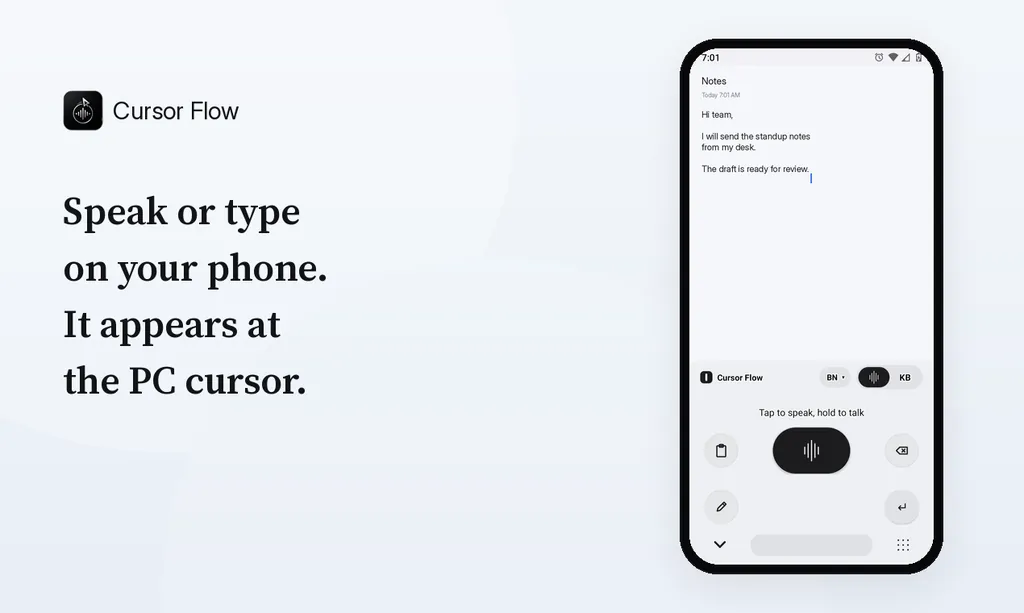
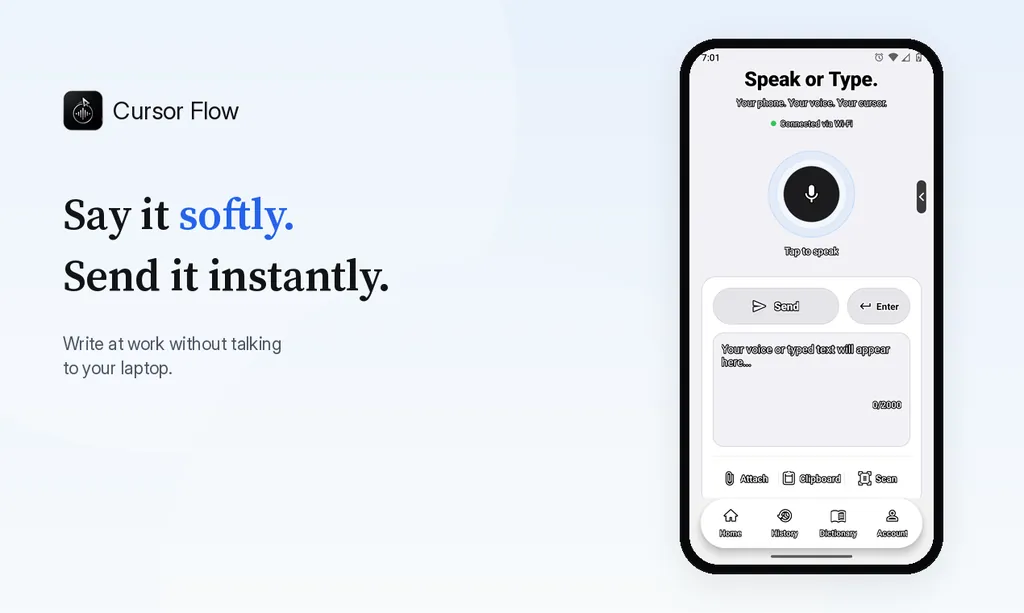
The free plan includes 2,500 dictation words a week, typing on your phone into your PC cursor, phone-to-PC files, images and clipboard, and Scan. See pricing, how phone to PC works, and the Android voice keyboard.
FAQ
How do I turn on voice typing on Android?
Open any app with a text box, tap the gear icon on Gboard, tap Voice typing and turn it on. Then tap the microphone at the top of the keyboard and speak.
Where is the microphone on my keyboard?
On Gboard it is at the top right of the keyboard. If it is missing, voice typing is turned off in the keyboard's settings or the keyboard does not have microphone permission.
Can I add punctuation with my voice?
Yes. Say "period", "comma", "exclamation point", "question mark", "new line" or "new paragraph". Punctuation may not be available in every language.
Can I use Android voice typing to type on my PC?
Not with Gboard alone. Gboard types on the phone. Apps like Cursor Flow pair your phone with a Windows PC so what you say appears at the PC cursor.
Want your phone's voice typing to land on your PC too? Download Cursor Flow. It runs on Android 9 or newer and Windows 10 or 11.
- 57languages
- 2,500free words a week
- Windows + Androidone paired workflow