Cursor Flow
Google Docs Voice Typing: How to Use It (Commands + Tips)
How to turn on Google Docs voice typing, the punctuation and editing commands that work, browser limits, and tips for better accuracy at a shared desk.
On this page
- What you need
- How to start voice typing in Google Docs
- Punctuation commands
- Editing and formatting commands
- Languages
- Using Google Docs voice typing on a phone
- Tips for better accuracy
- Limits worth knowing
- When you want voice typing beyond Google Docs
- A simple workflow for long documents
- How to do this with Cursor Flow
- FAQ
- Keep reading
This guide follows Google's own help page, Type and edit with your voice, checked on 10 November 2026. I add notes from my own use as someone who writes a lot and does not enjoy typing.
What you need
- A computer with a working microphone.
- The latest version of Chrome, Edge or Safari. Google lists these three as supported.
- A Google Docs document open in that browser.
Google also notes that if your organization has turned the feature off, your administrator controls it. That is a common reason it is missing on work accounts.
How to start voice typing in Google Docs
- Open a document in Google Docs.
- Click Tools > Voice typing. A microphone box appears.
- When you are ready, click the microphone.
- Speak clearly at a normal volume and pace.
- When you are done, click the microphone again.
You can fix mistakes while the microphone is still on. Click the wrong word, correct it with the keyboard, then move the cursor back to where you want to keep going. Words underlined in grey have suggestions you can see with a right-click.
Punctuation commands
Say these words to add punctuation:
| Say | You get |
|---|---|
| Period | . |
| Comma | , |
| Exclamation point | ! |
| Question mark | ? |
| New line | line break |
| New paragraph | new paragraph |
Google notes that punctuation may not be available in every language.
Editing and formatting commands
Voice commands let you select, format and move around without the mouse. A few useful ones from Google's list:
- Select: "select paragraph", "select last word", "select all"
- Format: "bold", "italics", "underline", "apply heading 2"
- Lists: "create bulleted list", "create numbered list"
- Edit: "delete last word", "copy", "paste", "insert comment" followed by your comment
- Move: "go to end of paragraph", "move to start of document"
- Resume: "resume" puts the cursor at the end of the paragraph so you can keep dictating
Important limits from Google's page: voice commands work only in English, and both your account language and the document language must be English. They are not available in Slides speaker notes.
Languages
Voice typing supports a long list of languages and accents, including English variants, Spanish, French, German, Hindi, Bengali (Bangladesh and India), Arabic, Japanese and many more. Pick the language from the menu in the microphone box before you start.
Using Google Docs voice typing on a phone
The Tools menu option is for computers. On Android, open the Google Docs app, tap where you want to write and use the microphone on your keyboard. In Gboard, it sits at the top of the keyboard. If it does not work, see our guide to enabling voice typing on Android.
Tips for better accuracy
Use a closer microphone
Laptop mics are far from your mouth and pick up the room. A headset, or any mic close to your face, makes a big difference. If you work at a shared desk, a close mic also lets you speak more softly.
Speak in full phrases
Pausing in the middle of a phrase can break it into odd pieces. Think the sentence, then say it.
Dictate first, edit later
Do not fix every small error as you go. Get the draft out, then edit with the keyboard. It is faster.
Watch for long sessions
Some users report that voice typing stops after a period of silence. If it keeps stopping, see Google Docs voice typing not working.
Limits worth knowing
- It only works inside Google Docs (and Slides speaker notes). It will not type into Gmail, Slack or other apps.
- It needs a supported browser: Firefox is not on Google's list.
- You need to speak at a normal volume, as Google's help page says. That can feel awkward in an open office.
- No automatic cleanup: Filler words and repeated words stay unless you remove them.
When you want voice typing beyond Google Docs
If you only write in Docs, the built-in tool is free and good. If you write across email, chat and documents, you may want something that types in any app. On Windows, the built-in option is Win+H. Dictation apps like Cursor Flow also type at your cursor in any app, including Docs, and remove filler words.
Cursor Flow's difference is that you can use your Android phone as a close mic and speak quietly, which helps at a shared desk. See how it works in Gmail, Notion and Google Docs, or our earlier post on voice typing in Gmail, Google Docs and Notion.
A simple workflow for long documents
Voice typing works best when you separate thinking, speaking and editing:
- Outline with the keyboard: Type your headings first. It gives you a map to speak into.
- Dictate one section at a time: Click under a heading, start the microphone and talk through that part only.
- Say punctuation only where it matters: "Period" and "new paragraph" are the two you will use most.
- Edit at the end: Turn the microphone off and fix names, numbers and odd words with the keyboard.
This keeps you moving and avoids the stop-start feeling of correcting every sentence.
How to do this with Cursor Flow
- Install both apps. Get Cursor Flow for Windows and Android from the download page.
- Pair once. Open the phone app and scan the QR code shown on your PC. See pairing if you get stuck.
- Click into any text field, then speak or type. Speak softly into the phone held close, or type and tap Send. The words are typed at your PC cursor, in the app you already use.
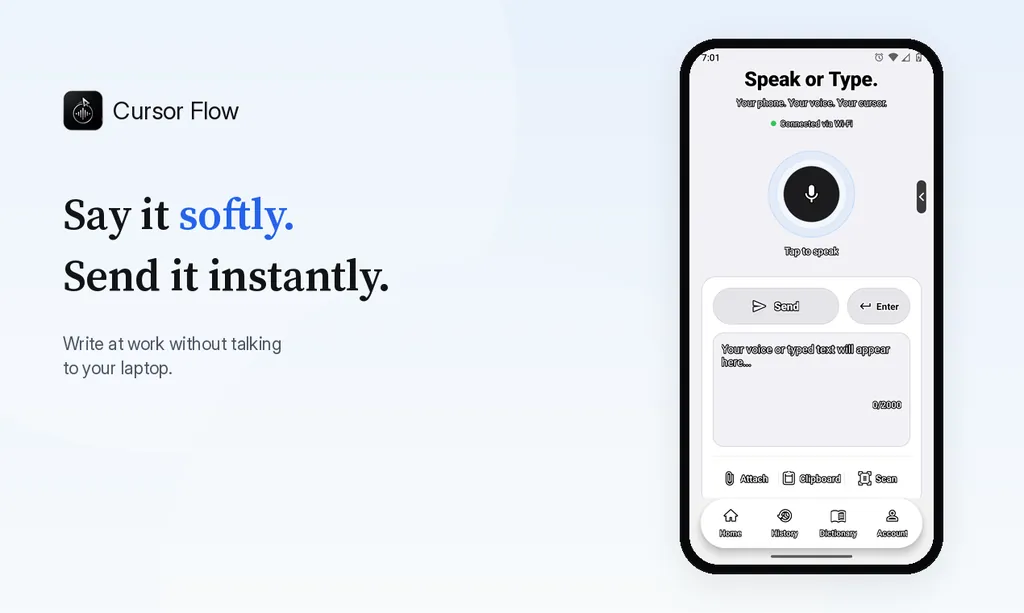
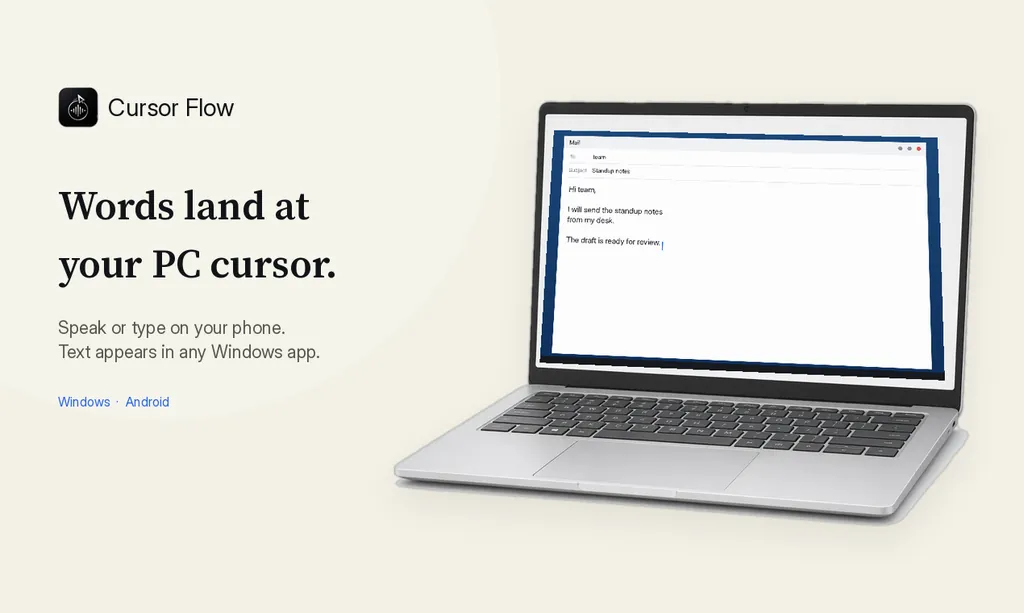
The free plan includes 2,500 dictation words a week, typing on your phone into your PC cursor, phone-to-PC files, images and clipboard, and Scan. See pricing, how phone to PC works, and Gmail, Docs and Notion.
FAQ
How do I turn on voice typing in Google Docs?
Open a document in Chrome, Edge or Safari, click Tools, then Voice typing. Click the microphone box and start speaking. Click it again to stop.
Is Google Docs voice typing free?
Yes. It is part of Google Docs on a computer. You need a supported browser and a working microphone.
Does Google Docs voice typing add punctuation?
You add it by saying commands like "period", "comma", "question mark", "new line" and "new paragraph". Punctuation commands are not available in every language.
Can I use Google Docs voice typing on my phone?
The Tools menu option is for computers. On a phone, open the Docs app and tap the microphone on your keyboard, for example in Gboard.
Why does voice typing not appear in the Tools menu?
Check that you are using a supported browser. Google also notes that your administrator may have turned the feature off for your organization.
If you want voice typing that works in every Windows app, try Cursor Flow free. You can also use your phone as the microphone.
- 57languages
- 2,500free words a week
- Windows + Androidone paired workflow