Cursor Flow
Google Docs Voice Typing Alternatives That Work in Any App
Google Docs voice typing only works in Docs and a few browsers. Free and paid alternatives that type into Gmail, Word, Slack and every Windows app.
On this page
- What Google Docs voice typing does well, and where it stops
- Alternative 1: Windows voice typing (free)
- Alternative 2: Your phone's keyboard
- Alternative 3: Dictation apps
- Where Cursor Flow fits
- Which alternative should you choose?
- How to test an alternative in 15 minutes
- Privacy points to check
- How to do this with Cursor Flow
- FAQ
- Keep reading
I build Cursor Flow, so I have a bias. I have kept competitor facts to what their own pages say, checked on 10 November 2026.
What Google Docs voice typing does well, and where it stops
From Google's voice typing help page:
Strengths - Free, built into Docs. - Many languages and accents, including Hindi and Bengali. - Voice commands for selecting, formatting and editing.
Limits - Works only in Google Docs and Slides speaker notes. - Supported browsers: latest Chrome, Edge and Safari. - Voice commands are English only, and your account and document language must be English. - Google's advice is to speak "clearly and at a normal volume", which is hard in an open office. - No automatic removal of filler words.
If you write mostly in Docs, in a quiet room, it is hard to beat for free. Our Google Docs voice typing guide covers it in full.
Alternative 1: Windows voice typing (free)
How: click any text box and press Windows key + H.
From Microsoft's voice typing page:
- Works in any app with a text box.
- Needs internet and a working microphone.
- Settings for automatic punctuation, profanity filter and default mic.
- On Copilot+ PCs, Fluid dictation corrects grammar, punctuation and filler words.
Good for: free dictation in Gmail, Word, Slack and Docs alike.
Alternative 2: Your phone's keyboard
On Android, Gboard voice typing works in most apps where you can type, including the Google Docs app. It is free and good for short edits. It types on the phone, not on your PC.
Alternative 3: Dictation apps
These install on your computer and type at your cursor in any app. They usually add cleanup, custom vocabulary and shortcuts.
| App | Platforms (from official pages) | Free option | Paid from |
|---|---|---|---|
| Wispr Flow | Mac, Windows, iOS, Android | 2,000 words/week on desktop | $12/month yearly, $15 monthly |
| Superwhisper | macOS, Windows, iOS, Android | Unlimited with local models | $8.49/month, $249.99 lifetime |
| Voicy | Mac, Windows, Linux, Chrome, iPhone, Android | 30 minutes free | $82/year, $260 lifetime |
| Cursor Flow | Windows 10/11, Android 9+ | 2,500 words/week | $15/month |
Sources: Wispr Flow pricing, Superwhisper plans, Voicy pricing, and our own pricing page.
Where Cursor Flow fits
Cursor Flow is for people who write a lot on a Windows PC but do not want to talk out loud to it. You pair your Android phone with the PC, then:
- Speak softly into the phone held close, and the words appear at your PC cursor, in Google Docs, Gmail, Word or anywhere else. See Gmail, Notion and Google Docs.
- Type on the phone when you cannot speak.
- It types like a keyboard, word by word, so it works in apps that block paste.
- Filler words are removed, and there is an offline mode on the PC.
Limits: no Mac or iPhone yet, it needs some sound to dictate (it does not read lips), and it is in public beta.
Which alternative should you choose?
- Free, any app, quiet room: Windows voice typing.
- Mac plus Windows, polished cloud tool: Wispr Flow.
- Local processing, lifetime price: Superwhisper.
- Browser extension, Linux: Voicy.
- Windows plus Android, shared office, quiet voice or typing on phone: Cursor Flow.
Our compare page has a side-by-side of Cursor Flow, Windows voice typing and Gboard.
How to test an alternative in 15 minutes
Picking from a table is hard. A short, real test tells you more:
- Choose one real task: For example, a reply to an email you actually need to send.
- Dictate it in Google Docs voice typing first: Note how many words you had to fix.
- Dictate the same reply with Win+H in Gmail or Outlook. Note the fixes again.
- Install one dictation app's free tier and repeat at your normal desk, at the volume you are comfortable with.
- Compare the edits, not the demo: The best tool is the one that leaves you the least cleanup and that you will use where you actually work.
Two details often decide it:
- Where you write: If most of your writing is in Docs, the built-in tool may be enough. If it is spread across email, chat and documents, a system-wide tool saves the most time.
- Who is around you: If you sit near colleagues, the tool you will use is the one that lets you speak softly, or not speak at all.
Privacy points to check
Each option handles audio differently. Google Docs says your browser controls the speech service. Microsoft says Windows voice typing uses online speech recognition. Some apps offer offline modes. Read each vendor's privacy page before dictating anything sensitive, and keep confidential topics out of shared spaces regardless of the tool.
How to do this with Cursor Flow
- Install both apps. Get Cursor Flow for Windows and Android from the download page.
- Pair once. Open the phone app and scan the QR code shown on your PC. See pairing if you get stuck.
- Click into any text field, then speak or type. Speak softly into the phone held close, or type and tap Send. The words are typed at your PC cursor, in the app you already use.
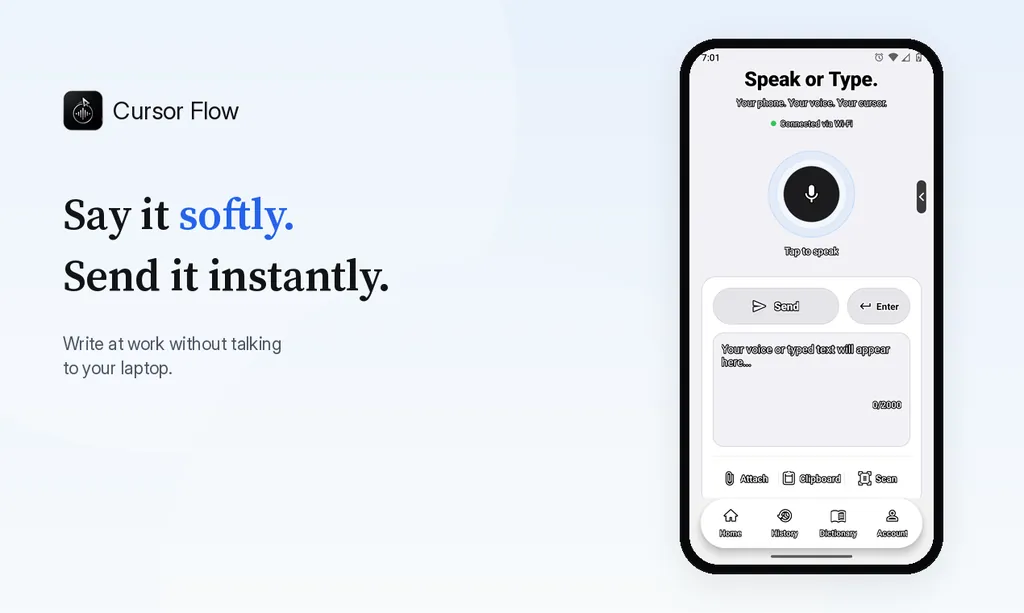
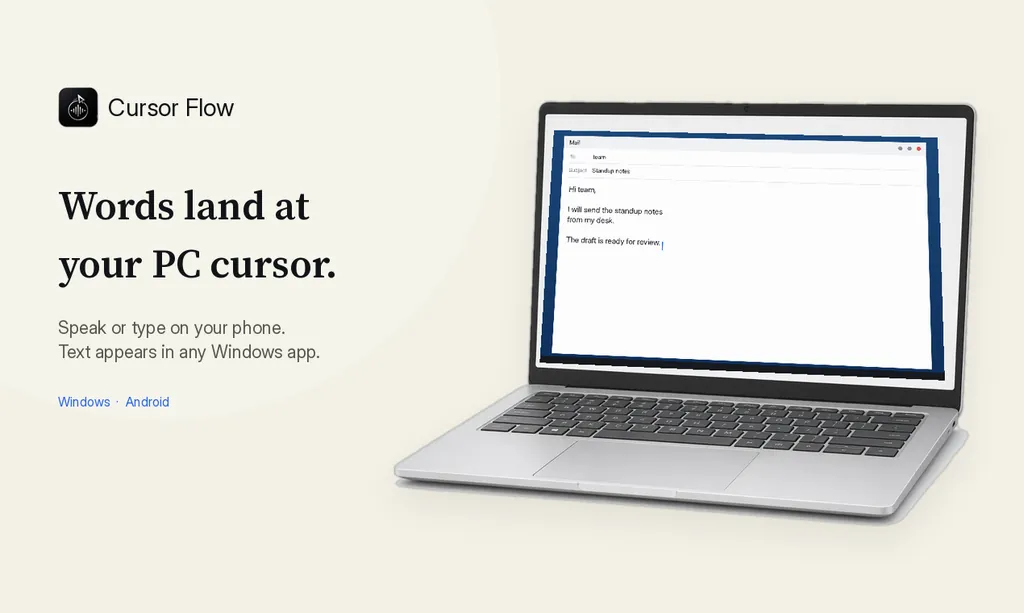
The free plan includes 2,500 dictation words a week, typing on your phone into your PC cursor, phone-to-PC files, images and clipboard, and Scan. See pricing, how phone to PC works, and Gmail, Docs and Notion.
FAQ
Is Google Docs voice typing free?
Yes. It is built into Google Docs on a computer and works in the latest Chrome, Edge and Safari.
Why look for an alternative to Google Docs voice typing?
It only works inside Google Docs and Slides speaker notes, needs a supported browser, has English-only voice commands and does not remove filler words.
What is the best free alternative on Windows?
Windows voice typing. Press Windows key + H in any text box. It needs internet and types into any app.
Can I use my phone to dictate into Google Docs on my PC?
Yes, with a phone-to-PC app. Cursor Flow lets you speak or type on your Android phone and the text appears at your PC cursor, including in Google Docs.
Want dictation in every Windows app, with your phone as a quiet mic? Download Cursor Flow and start with the free plan.
- 57languages
- 2,500free words a week
- Windows + Androidone paired workflow