Cursor Flow
Best Dictation Software for Windows 11 and 10 (2026)
Honest comparison of dictation software for Windows: built-in voice typing, Word Dictate, Wispr Flow, Superwhisper, Voicy and Cursor Flow. Prices included.
On this page
I build Cursor Flow, so I am not neutral. To keep this fair, every competitor fact comes from that company's official pages, checked on 10 November 2026, and I say where others are the better pick.
How I compared them
- Where it types: one app, or any app on Windows?
- Cost: free tier and paid price.
- Offline: can it run without internet?
- Platforms: Windows only, or Mac and phones too?
- Shared-office fit: can you use it without speaking loudly?
I did not include accuracy percentages. Accuracy depends on your voice, mic and room, and vendor claims are hard to compare. Test on your own writing.
1. Windows voice typing (free, built in)
From Microsoft's voice typing page:
- Press Windows key + H with the cursor in a text box.
- Works in any app. Needs internet and a working mic.
- Settings: automatic punctuation, profanity filter, default microphone, voice typing launcher.
- On Copilot+ PCs, Fluid dictation corrects grammar, punctuation and filler words.
Best for: anyone. Try it before paying for anything. Limits: needs internet; on most PCs, no filler-word cleanup.
2. Microsoft Word Dictate
From Dictate your documents in Word:
- Home > Dictate inside Word.
- Only for Microsoft 365 subscribers; needs internet.
- Auto punctuation, many voice commands, sensitive-phrase filter.
Best for: long documents in Word. Limits: works in Microsoft 365 apps, not everywhere. Our Word voice typing guide has the steps.
3. Wispr Flow
From Wispr Flow pricing:
- Mac, Windows, iOS and Android. 100+ languages.
- Free plan with a 2,000-word weekly allowance on desktop.
- Pro $15/month, or $12/month billed yearly.
- Team features like SSO on higher plans.
Best for: people on Mac and Windows, and teams that need admin controls. Limits: subscription for heavy use.
4. Superwhisper
From Superwhisper plans and its Windows docs:
- Windows 10 and 11 (x64 and ARM64), macOS, iOS, Android.
- Free plan: unlimited dictation with local models.
- Pro $8.49/month, $84.99/year or $249.99 lifetime.
- Local models use your GPU through Vulkan where supported; CPU fallback is slower.
Best for: privacy-minded users with a capable PC, and people who prefer a one-time price. Limits: local models can be slow on older hardware.
5. Voicy
From Voicy pricing and its home page:
- Mac, Windows, Linux, Chrome extension, iPhone, Android.
- Free trial with 30 minutes of recording, no card.
- Pro $82/year, Lifetime $260, team plan from $6.79 per user per month (minimum 3).
- Offline mode on desktop, which Voicy says supports 25 languages.
Best for: people who want a Chrome extension or Linux support. Limits: free trial is short.
6. Cursor Flow
From our pricing and Windows dictation app pages:
- Windows 10 and 11, Android 9 or newer. No Mac or iPhone yet.
- Free plan: 2,500 words a week, no card. Individual $15/month (you plus one person you gift), Power $25/month. 14-day money-back.
- 57 languages, filler-word cleanup, offline mode on the PC.
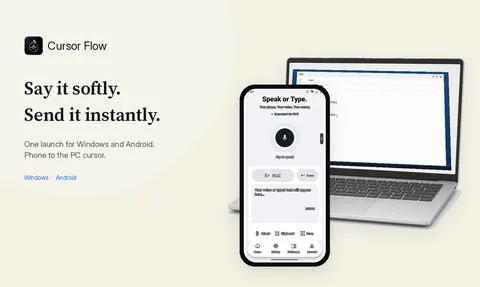
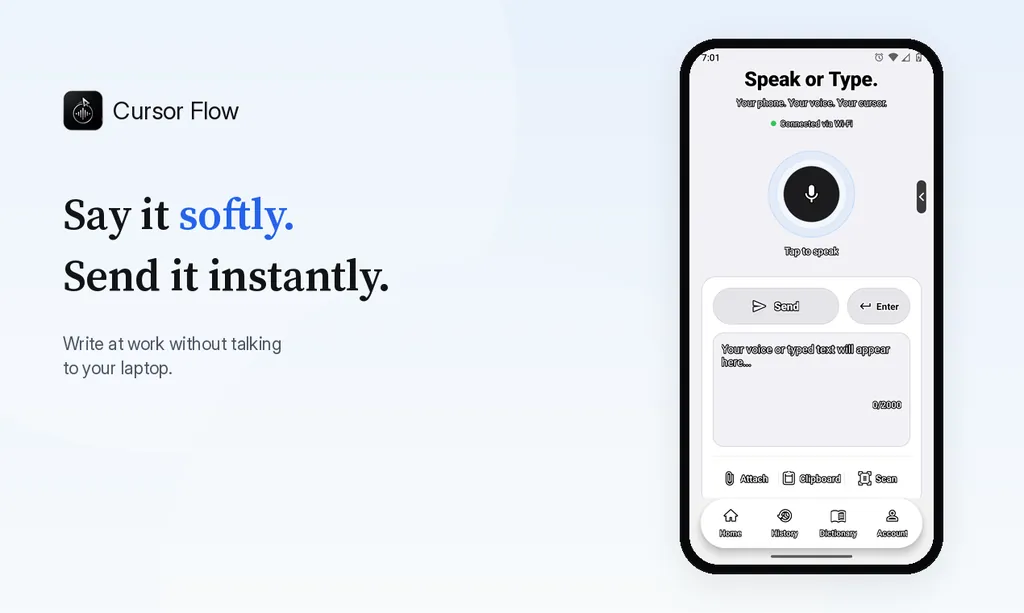
- Phone as a close mic: speak softly into your Android phone and the words type at your PC cursor.
- Type on the phone when you cannot speak.
- Phone-to-PC files, clipboard and Scan in the same app.
Best for: introverts and anyone in a shared office who writes a lot on Windows. Limits: public beta; Windows installer not code-signed yet, so SmartScreen may warn; needs some sound to dictate.
Comparison table
| Tool | Any app | Free option | Paid from | Offline | Mac/iPhone |
|---|---|---|---|---|---|
| Windows voice typing | Yes | Free | n/a | No | No |
| Word Dictate | Microsoft 365 apps | With M365 | M365 subscription | No | Mac Word |
| Wispr Flow | Yes | 2,000 words/week | $12/month yearly | Not listed | Yes |
| Superwhisper | Yes | Unlimited local | $8.49/month | Yes | Yes |
| Voicy | Yes | 30 minutes | $82/year | Yes (25 languages) | Yes |
| Cursor Flow | Yes | 2,500 words/week | $15/month | Yes | Not yet |
How to choose
- Try Win+H for a day: If it covers you, stop there.
- Decide on offline: If audio must stay on your PC, look at Superwhisper or Cursor Flow's offline mode.
- Think about where you sit: In a quiet home office, any tool works. In a shared office, choose the one you will actually use there.
- Use free tiers on the same task: Dictate the same email in each and compare the edits needed.
For more on built-in vs paid, read Win+H vs dictation apps and our compare page.
Common mistakes when choosing dictation software
- Testing in the wrong place: A tool that feels great at home may sit unused at work if you do not want to speak out loud there. Test at the desk where you will use it.
- Judging on the first five minutes: Every tool gets better once you add names and terms to its vocabulary. Give each one a day of real use.
- Paying for features you will not use: Meeting notes, team dashboards and AI modes are useful for some people. If you only dictate email, a simpler plan is fine.
- Ignoring the microphone: A cheap close mic often improves results more than switching software. A headset, or a phone held near your mouth, beats a laptop mic across the desk.
- Forgetting privacy settings: Check whether audio is processed online or on your PC, and how long anything is kept. Each vendor explains this on its privacy or help pages.
How to do this with Cursor Flow
- Install both apps. Get Cursor Flow for Windows and Android from the download page.
- Pair once. Open the phone app and scan the QR code shown on your PC. See pairing if you get stuck.
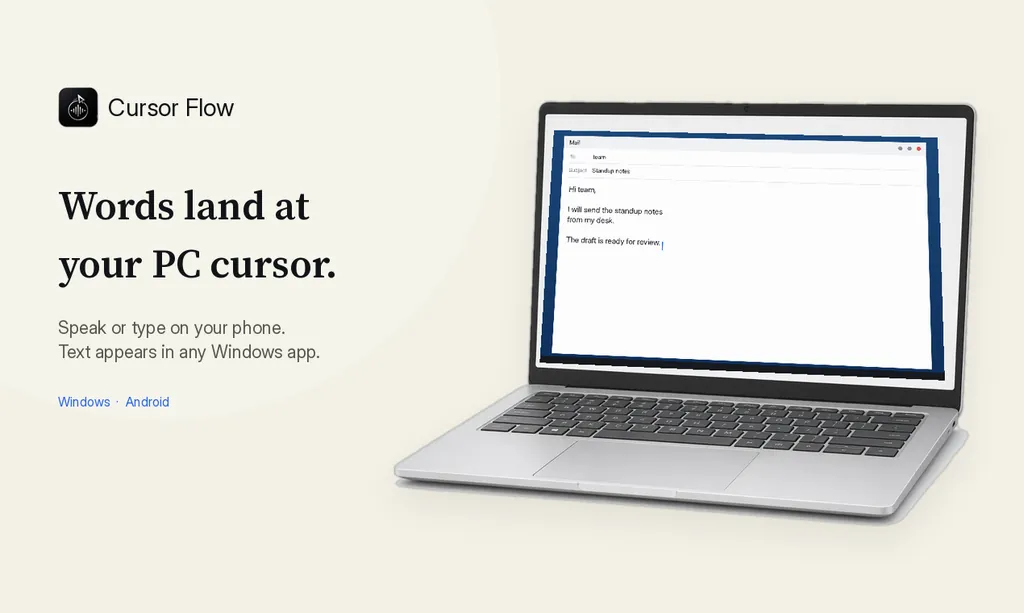
- Click into any text field, then speak or type. Speak softly into the phone held close, or type and tap Send. The words are typed at your PC cursor, in the app you already use.
The free plan includes 2,500 dictation words a week, typing on your phone into your PC cursor, phone-to-PC files, images and clipboard, and Scan. See pricing, how phone to PC works, and typing at the cursor.
FAQ
What is the best free dictation software for Windows?
Windows voice typing, opened with Windows key + H, is free and types into any app. Superwhisper's free plan with local models is another free option.
Does Windows 11 have built-in dictation?
Yes. Windows 11 and 10 include voice typing. It needs internet and a microphone, and you start it with Windows key + H.
Which dictation software works offline on Windows?
Superwhisper's local models and Cursor Flow's offline mode both run on your PC. Windows voice typing needs internet.
Which is best for an open office?
Any tool used with a close mic. Cursor Flow is built for this case: you can use your Android phone as a close mic and speak softly, or type on the phone.
Download Cursor Flow to test it against the others on your own PC.
- 57languages
- 2,500free words a week
- Windows + Androidone paired workflow