 Cursor Flow
How to Voice Type OneNote from Android to Windows
Write OneNote notes on Windows by speaking into an Android phone. Pair Cursor Flow, focus the right page, and keep your notes organized.
On this page
- Why use a phone to dictate OneNote on Windows?
- OneNote Android voice notes versus typed PC notes
- What you need before starting
- How to voice type a OneNote page from Android
- Keep new notes on the correct OneNote page
- Use headings, bullets and action items
- Cursor Flow versus Windows voice typing
- Fixes when OneNote voice typing is not working
- Privacy and sharing
- How to do this with Cursor Flow
- FAQ
- What the free plan includes
- FAQ
- Keep reading
This workflow creates editable text in OneNote. It is different from recording a voice note inside the OneNote Android app.
Why use a phone to dictate OneNote on Windows?
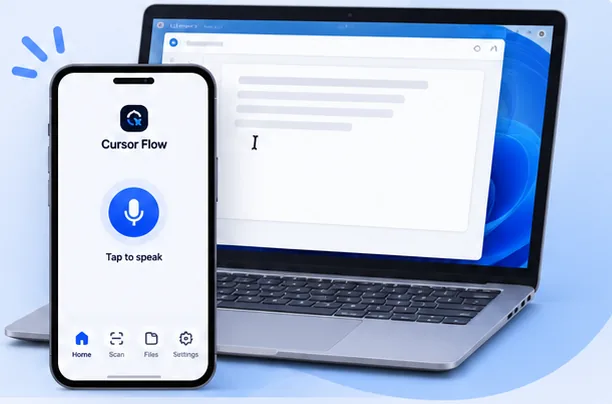
Your Windows computer may be on a desk while you are standing, walking around a room, or working away from its microphone. An Android phone is easy to bring close. Cursor Flow lets you keep the notebook, page structure and final note on the Windows screen while the phone supplies the voice or typed input.
The useful distinction is simple: OneNote stays open on the PC, and the phone becomes the nearby input device. You can speak softly, or type on the phone when you need a silent workflow.
OneNote Android voice notes versus typed PC notes
Microsoft's OneNote Android guidance says the app can create quick captures as text, voice, ink or images. Tapping the Mic button creates a voice note in the Android app. That is useful when you want an audio capture.
This guide is for a different result: editable words placed into a OneNote page on Windows. Use Cursor Flow when you want the note to remain in the PC notebook alongside headings, checklists, links and existing pages.
What you need before starting
-
A Windows 10 or 11 PC with Cursor Flow installed.
-
An Android phone running Android 9 or newer.
-
The same Cursor Flow account signed in on both devices.
-
One pairing between the phone and PC. Use the pairing guide if you have not connected them yet.
-
OneNote open on the Windows notebook and page where you want the text.
How to voice type a OneNote page from Android
-
Open the notebook on Windows. Choose the section and page where the note belongs.
-
Place the cursor in the page. Click below the heading or at the end of the existing paragraph.
-
Open Cursor Flow on Android. Confirm that the Windows PC is connected.
-
Speak or type a short test. Check that the text appears in the intended OneNote page.
-
Continue with the note. Say punctuation naturally, or add line breaks between separate thoughts.
-
Review the page. Fix names, numbers, dates and task owners before moving to another page.
Keep new notes on the correct OneNote page
OneNote can contain many notebooks, sections and pages. The most common mistake is focusing the wrong page before sending text. Check the notebook name, section tab and page title first.
Then click inside the page and send a short phrase such as “test note”. If it appears in the right place, remove it or keep it as the first line. If it appears somewhere unexpected, stop input, select the intended page and test again.
When the issue is Windows field focus rather than OneNote navigation, read the wrong-field troubleshooting guide.
Use headings, bullets and action items
Voice typing is most useful when you give each thought a clear place. Start a meeting note with the date, then add short sections for decisions, questions and next steps. OneNote can keep the text editable after Cursor Flow inserts it.
-
Say the meeting name and date first.
-
Leave a blank line before a new topic.
-
Use short sentences for action items.
-
Review names and deadlines before sharing the page.
Cursor Flow sends text to the active OneNote field. It does not decide which notebook page to open, create a task for someone, or share the page automatically.
Cursor Flow versus Windows voice typing
| Choose | Windows voice typing | Cursor Flow phone to PC |
|---|---|---|
| Where you speak | Into a PC microphone | Into a paired Android phone |
| Where text appears | The active OneNote field | The active OneNote field |
| Silent fallback | Not the main workflow | Type on the phone and send the text to OneNote |
| Internet | Microsoft says internet is required | Depends on the Cursor Flow mode and connection |
| Notebook organization | OneNote controls it | OneNote controls it |
Microsoft says Windows voice typing needs a working microphone, an internet connection and a cursor in a text box. Press Windows key + H after clicking the OneNote page. Cursor Flow is useful when the phone is a better microphone, when the PC mic is inconvenient, or when you want a phone keyboard fallback.
Fixes when OneNote voice typing is not working
Privacy and sharing
Review a note before sharing it. Meeting notes can contain names, customer details or private decisions. Cursor Flow does not replace OneNote's normal sharing controls, and it does not decide who can access a notebook.
How to do this with Cursor Flow
- Install both apps. Get Cursor Flow for Windows and Android from the download page.
- Pair once. Open the phone app and scan the QR code shown on your PC. See pairing if you get stuck.
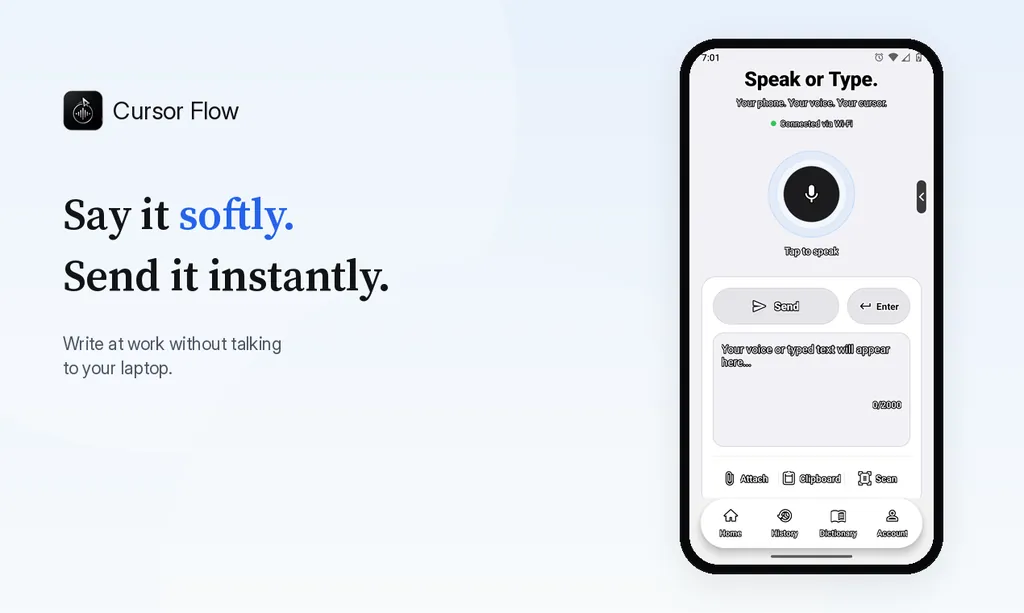
- Click into any text field, then speak or type. Speak softly into the phone held close, or type and tap Send. The words are typed at your PC cursor, in the app you already use.
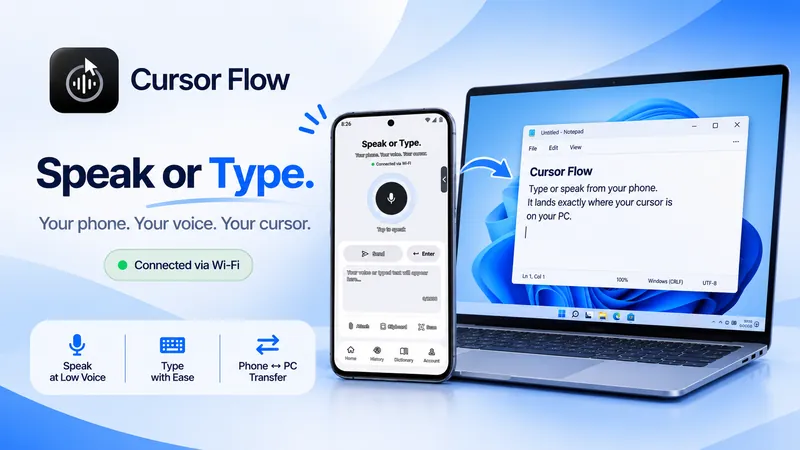
The free plan includes 2,500 dictation words a week, typing on your phone into your PC cursor, phone-to-PC files, images and clipboard, and Scan. See pricing, how phone to PC works, and typing at the cursor.
FAQ
What the free plan includes
The free plan includes 2,500 dictation words a week, typing on your phone into your PC cursor, phone-to-PC sending of files, images and clipboard, and Scan. No card needed.
FAQ
Can I voice type OneNote from Android to Windows?
Yes. Pair the Android phone and Windows PC in Cursor Flow, open the correct OneNote page, click inside it, and dictate from the phone. The words appear as editable text in the active OneNote field.
Is this the same as a OneNote Android voice note?
No. A OneNote Android voice note is an audio capture made with the Mic button. This workflow sends editable text into a OneNote page open on Windows.
Can I type on Android instead of speaking?
Yes. Type on the Cursor Flow phone interface and send the text to the active OneNote page. This is useful when you need to capture a note silently.
Why did my note appear on the wrong OneNote page?
The wrong page or text field had focus. Select the intended notebook page, click inside the page, and send a short test before dictating the complete note.
Does Cursor Flow organize OneNote notebooks automatically?
No. Cursor Flow sends text to the active field. You choose the notebook, section and page in OneNote, then review and organize the note there.
- 57languages
- 2,500free words a week
- Windows + Androidone paired workflow
 Cursor Flow