Cursor Flow
How to Reply to Emails Faster When You Get 100+ a Day
The average worker gets 117 emails a day. Batching, templates, a 3-line reply habit and soft voice replies that cut the time each answer takes.
On this page
- The volume is real
- Step 1: Batch email into set times
- Step 2: Decide each email once
- Step 3: Write shorter replies
- Step 4: Use templates for repeat answers
- Step 5: Say short replies instead of typing them
- Step 6: Move some email out of email
- A 20-minute email batch, start to finish
- Common mistakes
- Where this fits
- How to do this with Cursor Flow
- FAQ
- Keep reading
The volume is real
This is not just you. Microsoft's Work Trend Index found that the average worker receives 117 emails a day, most of them skimmed in under 60 seconds, and 153 Teams messages per weekday. Heavy users are interrupted about every two minutes by a meeting, email or chat (Microsoft WorkLab).
Open offices make it worse in a way that surprises people. When two large companies moved to open-plan floors, a Harvard study by Ethan Bernstein and Stephen Turban, published in 2018 in Philosophical Transactions of the Royal Society B, found face-to-face interaction dropped by about 70%, while email went up by 20% to 56%. People talked less and wrote more.
One data analyst on Reddit described what that feels like at the end of the day: "Today I had to talk to 7 different people for 7 different concerns in email exchange, Teams exchange and/or meeting ... I can barely function tonight" (Reddit).
Here is a system that works for people who get more email than they can comfortably type.
Step 1: Batch email into set times
Checking email every few minutes costs more than the reading. Each check pulls you out of focused work.
- Pick two or three times a day, for example 9:00, 13:00 and 16:30.
- Close the email tab between those times, or turn off notifications.
- If your role needs faster replies, tell your team once: "I check email at these times. For anything urgent, message me."
You will get through the same email in less time, because you are in one mode instead of switching back and forth.
Step 2: Decide each email once
When you open a message, make one of four decisions and move on:
- Reply now if it takes under two minutes.
- Delegate if someone else should answer. Forward it with one line.
- Schedule if it needs real work. Put it on your task list or calendar, then archive it.
- Archive if it needs nothing from you.
The slow habit is opening an email, thinking "later," and leaving it to be read again. Every re-read is wasted time.
Step 3: Write shorter replies
Long replies take long to write and long to read. Try a three-line default:
- The answer or decision.
- The one detail they need.
- The next step, if there is one.
Example: "Yes, Thursday at 3 works. I'll bring the draft. Can you book the room?"
Put the question or answer at the top and the back-story after it, so the most important part is in the first sentence.
Step 4: Use templates for repeat answers
If you send the same kind of reply every week, save it.
Gmail
Google's help page explains the steps (Gmail Help):
- On a computer, open Gmail and go to Settings > See all settings > Advanced.
- Next to Templates, click Enable, then Save Changes.
- Write the reply in a new message, then choose More options > Templates > Save draft as template > Save as new template.
- To use it, choose More options > Templates and pick it under Insert template.
Templates only work in Gmail on a computer, not in the phone app.
Outlook
Outlook has Quick Parts and mail templates for reusable text in both classic and new Outlook. Save your most common replies there.
Template ideas: meeting confirmation, "received, will reply by Friday," file request, polite no, intro to a colleague, weekly status.
Use square brackets for the parts you change each time, like [name] or [date], so a missed one stands out before you send.
Step 5: Say short replies instead of typing them
Short email replies are easy to say in one go, and saying them saves keystrokes. There are three free or built-in ways:
- Outlook Dictate: In a new email or reply, click the message body, then Message > Dictate. Microsoft says it needs a microphone, an internet connection and a Microsoft 365 subscription.
- Windows voice typing: Click into any email body and press Windows key + H. It works in Gmail in a browser too.
- A tool that types at your cursor, such as Cursor Flow, which works in any email app.
If you share an office
Dictating at a laptop means speaking at a normal volume, and many people would rather not narrate their emails to the row. The fix is a closer mic. A phone held a few centimetres from your mouth lets you speak softly and still be understood.
This is the setup I use and build. With Cursor Flow:
- Pair your Android phone with your Windows PC once.
- Click into the reply box in Gmail, Outlook or any email app.
- Hold the phone close and speak softly. The words are typed at your PC cursor, word by word. See Gmail, Notion and Google Docs.
- If you cannot speak, type on the phone and the text lands on the PC instead.
- Read it once and send.
Because it types like a keyboard instead of pasting, your clipboard stays as it was. See direct cursor typing.
Step 6: Move some email out of email
Some threads should not be email at all.
- Ten replies back and forth? Suggest one short call, or a shared document.
- A recurring update? Write it once a week in a shared doc and link to it.
- A meeting that could be a message? See how to replace meetings with async updates.
A 20-minute email batch, start to finish
- Minute 0 to 2: Sort by sender. Archive newsletters and notifications you do not need.
- Minute 2 to 15: Go top to bottom. Reply now, delegate, schedule or archive. Dictate or template the replies.
- Minute 15 to 18: Write the one longer reply you were avoiding, in three paragraphs at most.
- Minute 18 to 20: Check your sent folder for anything you promised, and add it to your task list.
Common mistakes
- Replying all day: You end up with more context switching, not less email.
- Perfect first drafts: Get the reply down, then edit once.
- Dictating confidential things at your desk: If you would not say it on a phone call at your desk, type it.
- Skipping the read-through: Names and numbers are where both typing and dictation slip.
Where this fits
Faster email is mostly habits. Tools help with the last part: fewer keystrokes per reply. If you are an introvert who writes more than you talk, as many of us do, writing at work without talking to your laptop covers the wider routine.
Cursor Flow runs on Windows 10 and 11 with an Android 9 or newer phone. The free plan includes 2,500 dictation words a week, typing on your phone into your PC cursor, phone-to-PC sending of files, images and clipboard, and Scan, with no card needed.
Download Cursor Flow and try it on your next email batch.
How to do this with Cursor Flow
- Install both apps. Get Cursor Flow for Windows and Android from the download page.
- Pair once. Open the phone app and scan the QR code shown on your PC. See pairing if you get stuck.
- Click into any text field, then speak or type. Speak softly into the phone held close, or type and tap Send. The words are typed at your PC cursor, in the app you already use.
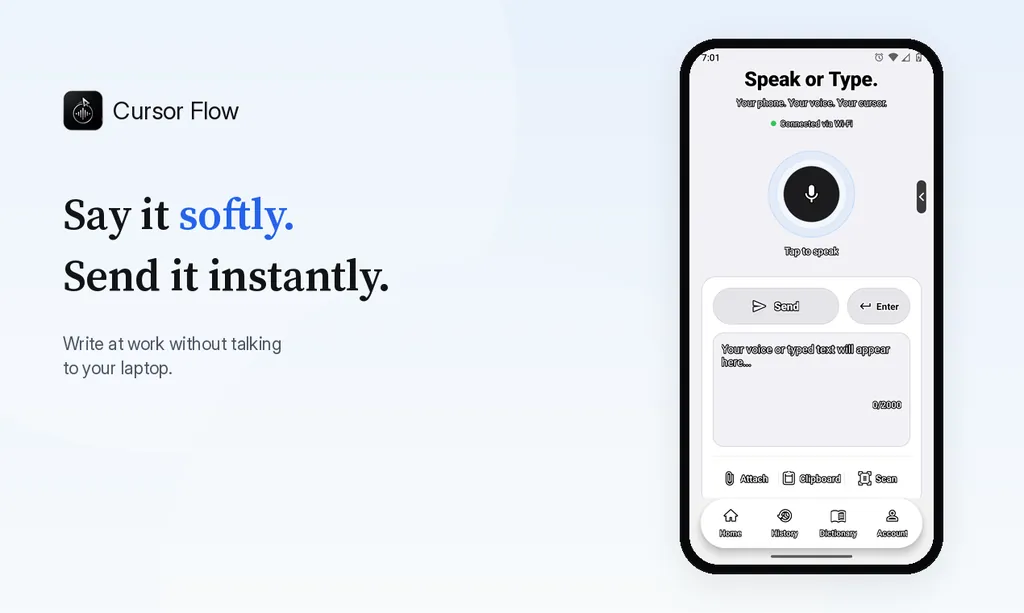
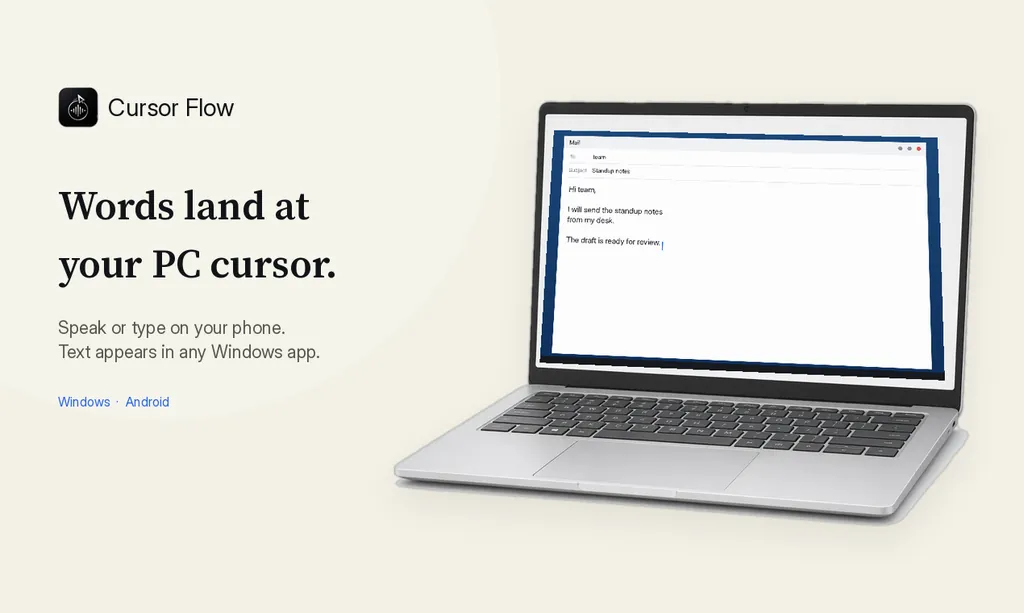
The free plan includes 2,500 dictation words a week, typing on your phone into your PC cursor, phone-to-PC files, images and clipboard, and Scan. See pricing, how phone to PC works, and Gmail, Docs and Notion.
FAQ
How many emails does the average worker get?
Microsoft's Work Trend Index (June 2025) says the average worker receives 117 emails a day, most of them skimmed in under 60 seconds.
What is the fastest way to reply to emails?
Batch email into two or three set times a day, decide each message once (reply, delegate, schedule or archive), keep replies short, and reuse templates for answers you send often.
How do I make email templates in Gmail?
On a computer, open Settings, See all settings, Advanced, and enable Templates. Then write a message and choose More options, Templates, Save draft as template.
Can I dictate email replies?
Yes. Outlook has a Dictate button for Microsoft 365 subscribers, Windows has voice typing with Windows key + H, and tools like Cursor Flow type your spoken words into any email app.
How do I reply to emails faster without typing so much?
Use templates for repeat answers and say short replies instead of typing them. In a shared office, a phone held close lets you speak softly.
- 57languages
- 2,500free words a week
- Windows + Androidone paired workflow