Cursor Flow
How to Send Text From Phone to PC Quickly (No Cable)
5 ways to send text from your phone to your PC or laptop: email, chat apps, Phone Link, Quick Share and typing straight to the PC cursor. Pros and cons.
On this page
- 1. Email it to yourself
- 2. A chat app with a web or desktop version
- 3. Phone Link copy and paste
- 4. Quick Share
- 5. Type or speak on your phone, and it types on your PC
- Quick comparison
- Which one should you choose?
- Tips for sending text safely
- Common mistakes to avoid
- How to do this with Cursor Flow
- FAQ
- Keep reading
This is a problem I know well. I used to type messages on my phone, send them to myself on WhatsApp, open WhatsApp Web on my PC and copy them into my work. That loop is what I wanted to remove when I built Cursor Flow. Here are all five methods, honestly compared.
1. Email it to yourself
- How: paste or type the text into an email to your own address. Open it on the PC.
- Good for: once in a while, or long text you want to keep.
- Downside: several steps and an inbox full of notes to yourself.
2. A chat app with a web or desktop version
- How: send the text to yourself in a chat app (many have a "message yourself" option), then open its web or desktop version on the PC and copy it.
- Good for: quick links and short notes.
- Downside: you still have to open the chat on the PC, find the message and copy it. At ten times a day, it is a lot of switching.
3. Phone Link copy and paste
Microsoft's Phone Link syncs the clipboard between Windows and some Android phones. Microsoft lists Surface Duo, Samsung phones on One UI 2.1 or later, and select HONOR, OPPO, ASUS, vivo and Xiaomi models.
- How: in Phone Link on the PC, go to Settings > Features > Cross-device copy and paste and turn it on. Copy on the phone, paste on the PC.
- Good for: supported phones on the same Wi-Fi.
- Downside: only listed phones, only text and images, and every copy replaces the clipboard on both devices. Details are on Microsoft's support page.
Our copy and paste guide covers this in more depth.
4. Quick Share
Google's Quick Share for Windows sends files between Android and a 64-bit Windows 10 or later PC over Wi-Fi and Bluetooth, within about 5 metres. Google says that on select Android 13 and newer devices, you can share copied clipboard content through Quick Share too.
- Good for: sharing a link or a file with a nearby PC, even without internet.
- Downside: you have to accept each transfer, and it is not a live connection for typing.
5. Type or speak on your phone, and it types on your PC
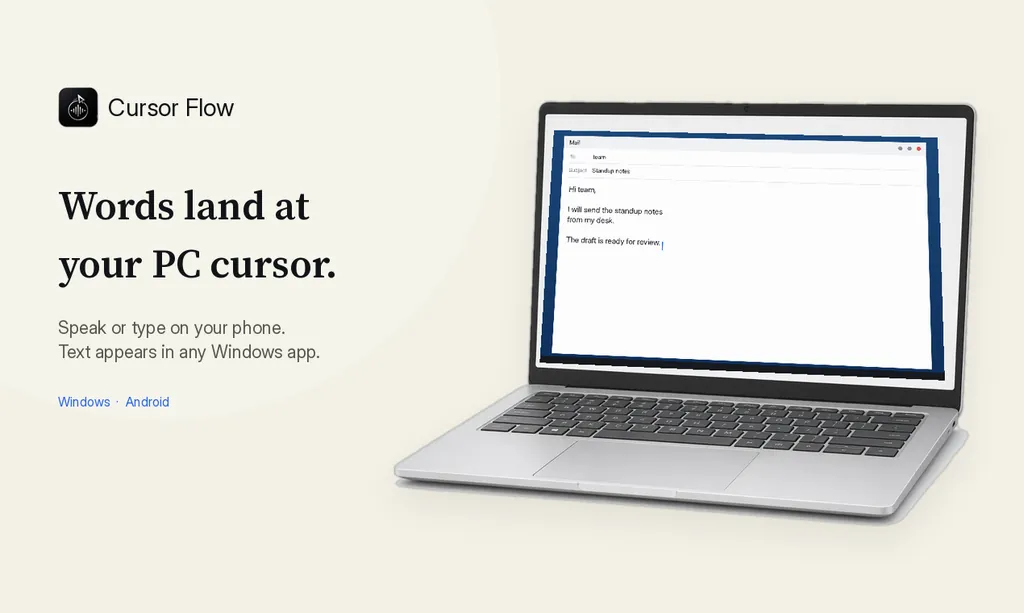
This is a different approach. Instead of moving text after you write it, you write it on the phone and it appears at your PC cursor as you go.
With Cursor Flow:
- Pair your Android phone with the Windows app once by scanning a QR code.
- Click where you want the text on your PC: an email, a chat, a form.
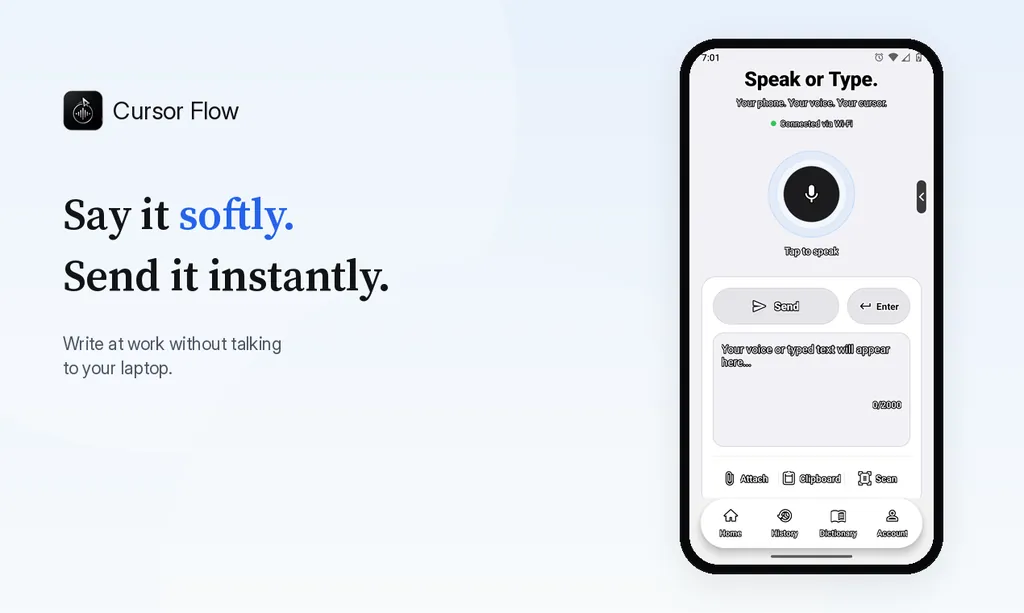
- Type or speak on your phone and tap Send. The text is typed at your PC cursor, like a keyboard would type it.
- Use the Enter key from your phone to send the message, if you like.
It works on office Wi-Fi, and over the internet when your phone and PC are not on the same network. On the same Wi-Fi it works without internet once paired. It supports Android 9 or newer and Windows 10 or 11. It does not support iPhone yet.
This is also how you can write on your PC when you cannot speak at all: I wrote about that in type on your phone to your PC when you cannot speak. If you prefer to talk, see phone to PC voice typing.
Quick comparison
| Method | Any Android phone | Setup | Steps each time | Without internet |
|---|---|---|---|---|
| Email to yourself | Yes | None | Many | No |
| Chat app | Yes | Log in on PC | Several | No |
| Phone Link copy and paste | Selected brands | Link phone | Few | Same Wi-Fi |
| Quick Share | Android 6+ (clipboard on select 13+) | Install on PC | Few | Yes, nearby |
| Cursor Flow | Android 9+ | Install both, pair | Very few | Same Wi-Fi |
Which one should you choose?
- Once a week: email or chat. No setup needed.
- Supported Samsung or listed phone: try Phone Link first. It is free and built in.
- You often write on the phone for your PC, or you also want voice typing and files: a phone-to-PC typing app makes sense.
Tips for sending text safely
- Do not send passwords through chat or email. Use a password manager.
- Be careful on shared PCs. Log out of chat web apps when you leave.
- If you use clipboard sync, remember that whatever you copy may appear on the other device.
Common mistakes to avoid
- Sending sensitive codes through shared chats: Use your own chat or a secure method, never a group.
- Leaving web sessions open: If you log in to a chat app's web version on a shared PC, log out afterwards.
- Copying formatted text into forms: Pasted formatting can break some fields. Typing the text, or pasting as plain text, avoids that.
How to do this with Cursor Flow
- Install both apps. Get Cursor Flow for Windows and Android from the download page.
- Pair once. Open the phone app and scan the QR code shown on your PC. See pairing if you get stuck.
- Click into any text field, then speak or type. Speak softly into the phone held close, or type and tap Send. The words are typed at your PC cursor, in the app you already use.
The free plan includes 2,500 dictation words a week, typing on your phone into your PC cursor, phone-to-PC files, images and clipboard, and Scan. See pricing, how phone to PC works, and silent typing from your phone.
FAQ
What is the fastest way to send text from phone to PC?
If your phone supports Phone Link copy and paste, copying is fastest. On other phones, an app that types straight at the PC cursor avoids opening anything on the PC.
Can I send text from my phone to my PC without internet?
Yes, over a local connection. Quick Share uses Wi-Fi and Bluetooth between nearby devices. Cursor Flow works on the same Wi-Fi without internet once paired.
How do I send text from my phone to my laptop online?
Email it to yourself, send it in a chat app with a web version, or save it in a notes app that syncs. Then open it on the laptop and copy it.
Can I send text from an iPhone to a Windows PC?
The methods in this guide focus on Android. Email, chat and notes apps work from iPhone too. Cursor Flow does not support iPhone yet.
Want your phone to type straight into your PC? Download Cursor Flow free, or read how phone to PC works.
- 57languages
- 2,500free words a week
- Windows + Androidone paired workflow