Cursor Flow
Transfer Files From Phone to Laptop Without a Cable (2026)
Move photos, PDFs and documents from Android to a Windows laptop without USB: Quick Share, Phone Link, cloud storage and Cursor Flow compared.
On this page
I used to send photos and files to myself on WhatsApp, then download them on my PC. Fifty times a day it was exhausting, and it is a big part of why Cursor Flow exists. Below are the real options, including free ones that may be all you need.
Option 1: Quick Share for Windows (free, nearby)
Google's Quick Share sends files between Android and Windows. From Google's Quick Share page:
- Works with 64-bit Windows 10 and up (Windows 11 and up on ARM).
- Quick Share is already on Android 6+ phones.
- The PC needs the Quick Share app, with Wi-Fi and Bluetooth on.
- Devices should be within about 5 metres (16 feet).
- Transfers are end-to-end encrypted, and you confirm each transfer.
Steps
- Install Quick Share on your PC and set device visibility.
- On your phone, open the file, tap Share > Quick Share.
- Pick your PC and wait for the transfer.
Note that Google says Quick Share by Google is meant for non-Samsung PCs. On a Samsung PC, use Samsung's own Quick Share app.
Option 2: Phone Link (free, Windows)
Microsoft's Phone Link connects Android phones to Windows. It can show your phone's photos on the PC, and on some Samsung and OPPO phones it supports dragging files between devices. Requirements include Windows 10 (October 2022 update or later) or Windows 11, and Android 10 or later. Microsoft's Phone Link setup page has the details.
It is good if your phone is well supported. Features vary a lot by brand.
Option 3: Cloud storage (works anywhere)
Upload from the phone to Google Drive, OneDrive or similar, then download on the laptop. Google's help page on moving files between your computer and Android lists this as an option.
- Pros: works from anywhere, any phone, keeps a backup.
- Cons: uploads then downloads, uses storage quota and mobile data, and adds steps for quick one-off files.
Option 4: Email or chat to yourself
Still the most common method. It works, but large files may hit size limits, photos may be compressed by some chat apps, and your inbox fills with clutter.
Option 5: Cursor Flow (Android to Windows)
Cursor Flow pairs your Android phone with your Windows PC by QR code. Sending a file works like this:
- In any Android app, tap Share and choose Cursor Flow, or open the app and tap Send file.
- Pick your PC.
- The file is saved to your Cursor Flow folder on the PC (Downloads\Cursor Flow by default) and a notification appears.
Facts from our file transfer page and docs:
- Photos, screenshots, PDFs, documents and other common files, up to 1 GB each.
- On the same office Wi-Fi, files go directly between your devices.
- Otherwise they travel securely over the internet, are deleted right after delivery, and anything undelivered is purged after 24 hours.
- Phone to PC only in this version. PC to phone is not supported yet.
It also handles clipboard and typing in the same app, which matters if you move text as often as files. Phone-to-PC file and image send, clipboard and Scan are included on the Free plan; see the pricing page.
Comparison
| Method | Distance | Any Android | Free | Extra steps each time |
|---|---|---|---|---|
| Quick Share | Nearby (about 5 m) | Android 6+ | Yes | Accept transfer |
| Phone Link | Same Wi-Fi | Android 10+, features vary | Yes | Few |
| Cloud drive | Anywhere | Yes | Free tier | Upload, then download |
| Email or chat | Anywhere | Yes | Yes | Many |
| Cursor Flow | Same Wi-Fi or internet | Android 9+ | Included on the Free plan | Share, pick PC |
| USB cable | At the desk | Yes | Yes | Plug in, pick File Transfer |
When a cable is still better
Wireless is convenient, but for hundreds of photos or very large videos, USB is often more reliable. Google's steps: make sure the phone screen is open (not on the lock screen), connect the cable, tap the "Charging this device via USB" notification, choose File Transfer and drag files in the window that opens on your PC.
Tips
-
Check storage first. A transfer can fail if the laptop's drive is nearly full.
-
Keep transfers small and frequent. One file at a time fails less often than a big batch.
- Name files on the phone before sending, so you can find them on the PC.
- Check the receive folder: Most tools save to Downloads or a subfolder.
- Be careful on public Wi-Fi: Use encrypted tools and avoid sending sensitive files.
For a deeper look at the Cursor Flow side, read our phone to PC file transfer post.
How to do this with Cursor Flow
- Install both apps. Get Cursor Flow for Windows and Android from the download page.
- Pair once. Open the phone app and scan the QR code shown on your PC. See pairing if you get stuck.
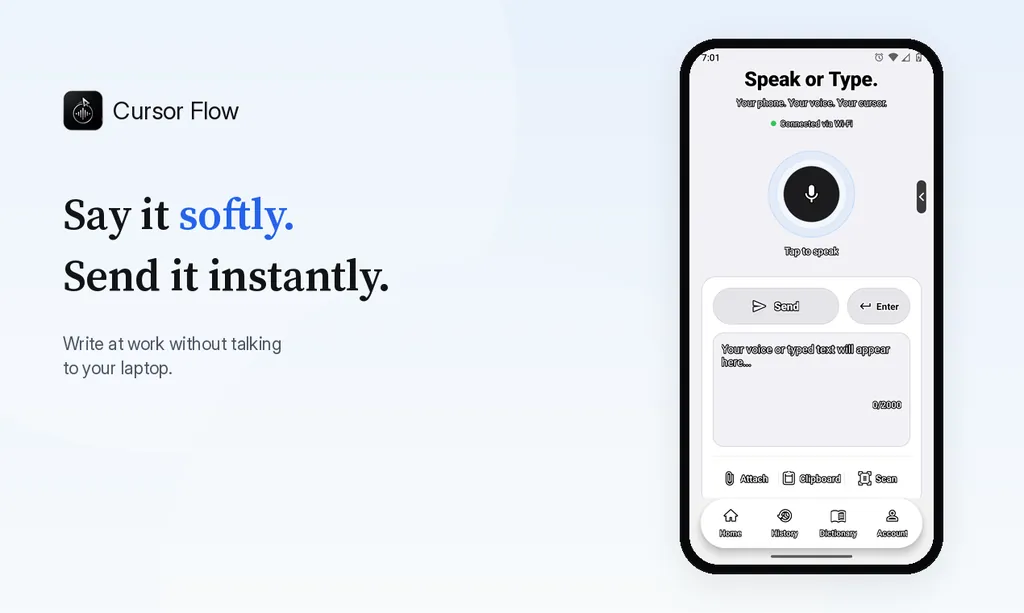
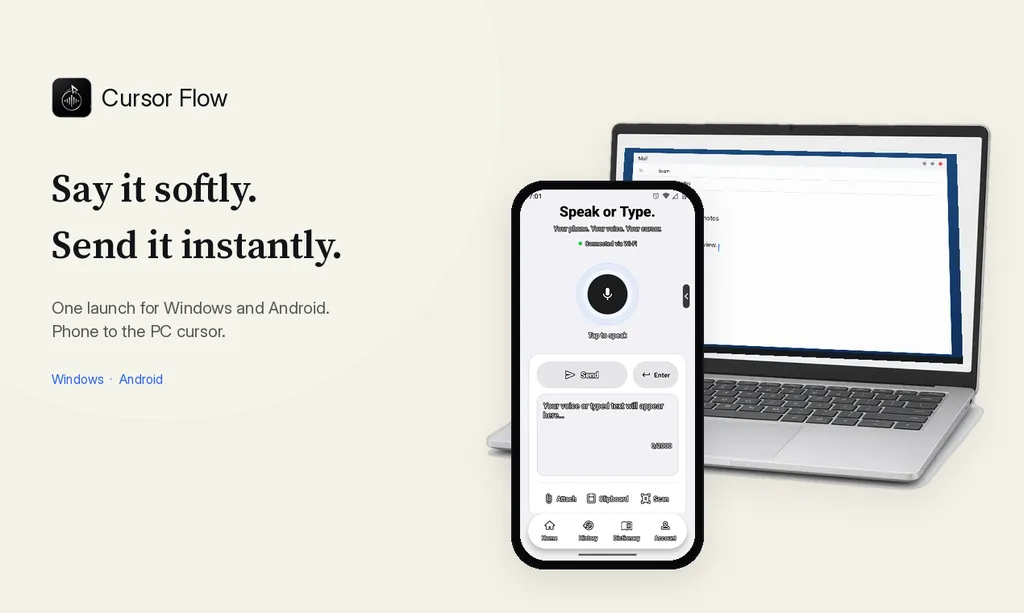
- Tap Attach, Clipboard or Scan. The file, the copied text or the scanned PDF arrives on your paired PC.
The free plan includes 2,500 dictation words a week, typing on your phone into your PC cursor, phone-to-PC files, images and clipboard, and Scan. See pricing, how phone to PC works, and phone-to-PC file transfer.
FAQ
How can I transfer files from my phone to my laptop wirelessly?
Use Quick Share for Windows if both devices are nearby, a cloud drive like Google Drive, Phone Link on supported phones, or a phone-to-PC app such as Cursor Flow.
Can I transfer files without internet?
Yes. Quick Share uses Wi-Fi and Bluetooth between nearby devices. Cursor Flow sends files directly between devices on the same Wi-Fi.
What is the file size limit?
It depends on the method. Cursor Flow supports files up to 1 GB each. Cloud drives depend on your storage plan.
Is USB still the fastest way?
For very large files or many files at once, a good USB cable is often the most reliable. For everyday photos and PDFs, wireless is usually quick enough.
Want files to land straight in a PC folder? Download Cursor Flow and try it on your own PC.
- 57languages
- 2,500free words a week
- Windows + Androidone paired workflow