Cursor Flow
Does Slack Have Voice to Text? How to Dictate on Windows
Slack has audio clips with transcripts, not a dictate button. How to voice type Slack messages on Windows, and how to reply softly from your phone.
On this page
- What Slack actually offers for voice
- Why so many people want to dictate Slack
- Method 1: Windows voice typing in Slack (free)
- Method 2: Record a clip, then use the transcript
- Method 3: Reply softly from your phone
- A quick comparison
- Slack-specific tips
- Common problems
- Where Cursor Flow fits
- How to do this with Cursor Flow
- FAQ
- Keep reading
I am Prince. I build Cursor Flow, so I am not neutral, but the first half of this guide uses only free tools.
What Slack actually offers for voice
From Slack's help center, the voice features are:
- Audio and video clips: You can share clips up to five minutes long in a channel or DM. Click the microphone icon in the message field to record audio, click the check mark to stop, then send. To add a transcript, click Generate transcript after sending (Slack Help).
- Huddles: Live audio conversations, with live captions.
Neither of these types your words into the message box. A clip is still audio. Your colleague has to open it, and anyone near your desk hears you record it.
So "does Slack have voice to text?" has two answers. For turning a recording into a transcript, yes. For dictating a normal typed message, no. That job falls to Windows or a dictation app.
Why so many people want to dictate Slack
Slack is where a lot of the typing in a workday goes. One project manager on Reddit put it this way: "Lately it feels like my day is just reacting to messages. Slack, email threads, meeting invites and random follow ups keep stacking up" (Reddit).
Most of those replies are short. "Yes, Thursday works." "Can you send me the file?" "Looks good, ship it." Short replies are exactly what voice is good at, as long as you can say them without broadcasting to the room.
Method 1: Windows voice typing in Slack (free)
- Open Slack on your PC and click into the message field of the channel, DM or thread.
- Press Windows key + H.
- Speak your reply.
- Turn on automatic punctuation from the gear icon in the voice typing bar.
- Check the text, then press Enter to send.
Limits to know:
- It needs internet, because Windows voice typing uses online speech recognition.
- It uses your PC's default mic. A laptop mic is far from your mouth, so you need a normal speaking voice.
- It supports a set list of languages. If you write Slack in a language outside that list, it will not help.
- In Slack, Enter sends. Use Shift + Enter for a new line.
Method 2: Record a clip, then use the transcript
If your team is fine with voice notes, a clip can replace a long message.
- Click the microphone icon in the Slack message field.
- Say what you need to say.
- Click the check mark and send.
- Click Generate transcript so people can read it instead of listening.
This works well for walk-throughs and updates where tone matters. It works less well for quick replies, because recording, sending and transcribing takes longer than typing a sentence, and the transcript is attached to audio rather than being a normal message.
Method 3: Reply softly from your phone
The real barrier in an office is usually being overheard. On r/ProductivityApps, someone asked whether people use dictation at work at all: "I'm in an open office layout and don't want to bother coworkers or for them to think I'm crazy" (Reddit).
The fix is a close mic. A laptop mic picks up you and the room at similar levels, so you speak up. A phone held a few centimetres from your mouth hears a soft voice clearly. To people nearby, it looks like you are leaving a voice note.
Setting it up with Cursor Flow
- Install Cursor Flow on your Windows PC and Android phone, and pair them once with a QR code.
- Click into the Slack message field on your PC.
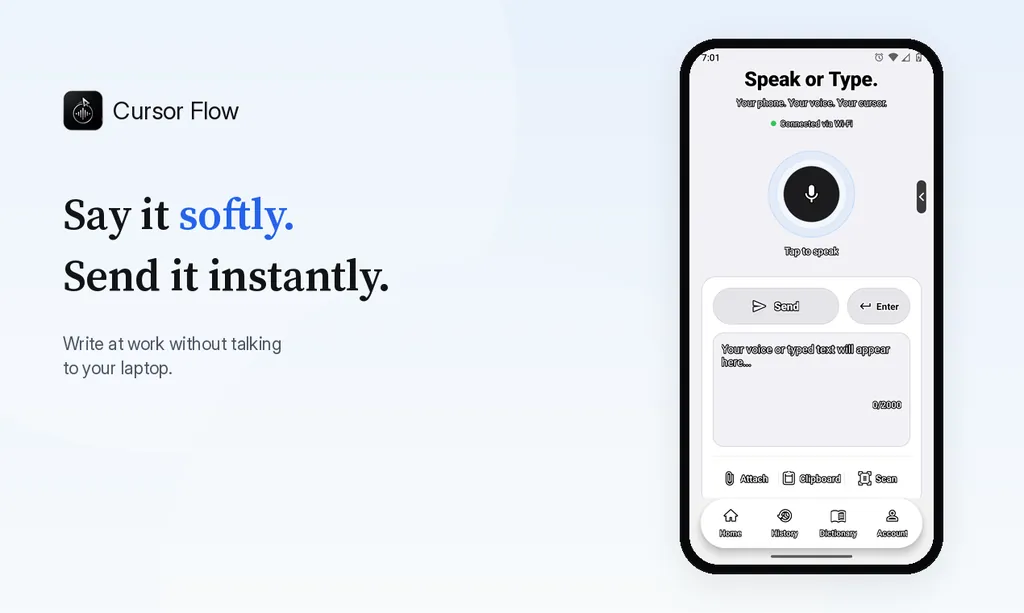
- Hold the phone 10 to 20 cm from your mouth and speak softly. The words are typed at your PC cursor, word by word. See phone to PC.
- If the room is silent, type on the phone instead. The text still lands in Slack.
- Press Enter on the PC, or send Enter from the phone.
Cursor Flow types like a keyboard rather than pasting, so whatever you copied stays on your clipboard. See direct cursor typing.
A quick comparison
| Option | Types into the message box | Silent | Needs internet | Cost |
|---|---|---|---|---|
| Slack audio clip + transcript | No (audio with transcript) | No | Yes | Included in Slack |
| Windows voice typing | Yes | No | Yes | Free |
| Phone held close, soft voice | Yes | Nearly | Works on same Wi-Fi once paired | Cursor Flow free plan to start |
| Typing on your phone | Yes | Yes | Works on same Wi-Fi once paired | Cursor Flow free plan to start |
Slack-specific tips
Use voice for replies, the keyboard for code. Code blocks, links and @mentions are easier to type. Dictate the sentence, then add the mention by hand.
Reply in the thread first. Click into the thread reply box before you speak, so the text does not land in the main channel by mistake.
Keep a short word list. Channel names, product names and colleagues' names are the words dictation gets wrong most often. If your tool supports custom vocabulary, add them once.
Batch your replies. Two or three times a day, open your unread DMs and reply to each by voice. It is faster than switching in and out all day, and it keeps voice use to short bursts.
Do not dictate private things at your desk. If you would not say it on a phone call at your desk, type it.
Common problems
Where Cursor Flow fits
Cursor Flow is built for one situation: you share a room and do not want to talk loudly at your laptop. It runs on Windows 10 and 11 with an Android 9 or newer phone. There is no Mac or iPhone app yet, and the Windows app is in public beta. It supports 57 languages, with English the most tested.
The free plan includes 2,500 dictation words a week, typing on your phone into your PC cursor, phone-to-PC sending of files, images and clipboard, and Scan, and no card is needed. If you use Teams too, the same setup works there; see how to dictate in Teams chat. For a fuller look at the PC side, see the Windows dictation app page.
Download Cursor Flow and try it on your next three Slack replies.
How to do this with Cursor Flow
- Install both apps. Get Cursor Flow for Windows and Android from the download page.
- Pair once. Open the phone app and scan the QR code shown on your PC. See pairing if you get stuck.
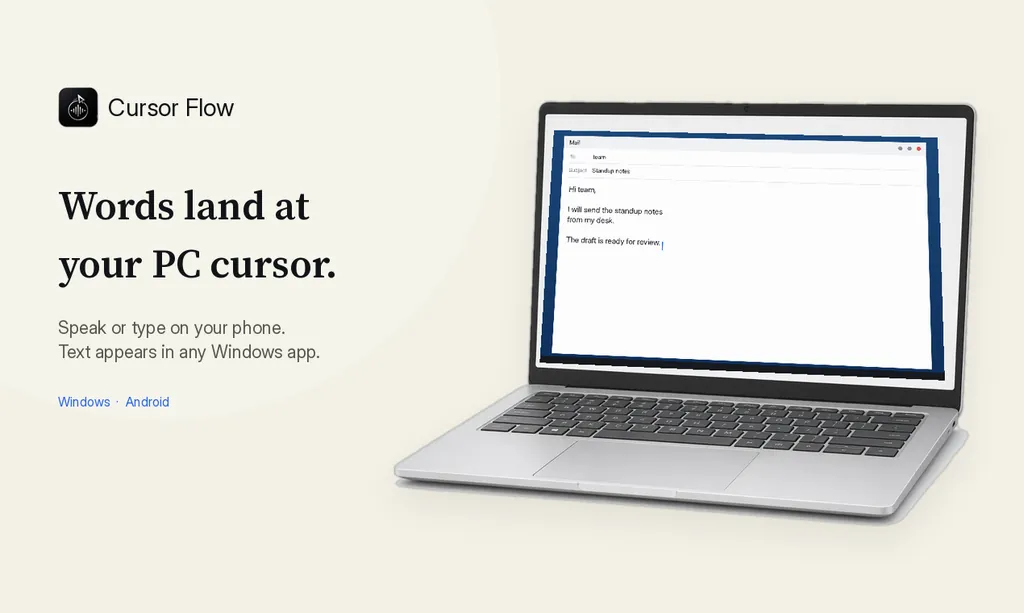
- Click into any text field, then speak or type. Speak softly into the phone held close, or type and tap Send. The words are typed at your PC cursor, in the app you already use.
The free plan includes 2,500 dictation words a week, typing on your phone into your PC cursor, phone-to-PC files, images and clipboard, and Scan. See pricing, how phone to PC works, and typing at the cursor.
FAQ
Does Slack have voice to text?
Slack lets you record audio clips up to five minutes long and generate a transcript after you send them. Its help center does not describe a dictate button that types your words into the message box.
How do I dictate a Slack message on Windows?
Click into the Slack message field, press Windows key + H, and speak. Windows voice typing types the text into Slack. It needs an internet connection.
Is a Slack audio clip better than dictation?
It depends on the reader. A clip keeps your tone, but your colleague has to play it. Typed text can be skimmed, searched and quoted, which most busy teams prefer for short replies.
Can I reply to Slack without my coworkers hearing?
Speaking softly into a close mic, such as a phone held near your mouth, keeps your voice low. Typing on your phone and sending the text to your PC is fully silent.
Does Cursor Flow work with Slack?
Yes. Cursor Flow types at your Windows cursor in any app, including the Slack desktop app and Slack in a browser.
- 57languages
- 2,500free words a week
- Windows + Androidone paired workflow