Cursor Flow
How to Voice Type WhatsApp Messages from Android Phone to Windows
Dictate a normal typed WhatsApp message from an Android phone into WhatsApp Desktop or Web on Windows. Learn the setup, focus checks, review routine, and common limits.
On this page
- Voice messages, transcripts, and dictation are different
- What you need before you start
- Set up WhatsApp voice typing from your phone
- Write a clean WhatsApp reply by voice
- Cursor Fllow versus Windows key plus H
- Common problems and quick fixes
- Privacy and message safety
- A reliable daily routine
- How to do this with Cursor Flow
- FAQ
- Keep reading
This is different from sending a WhatsApp voice message. A voice message is audio for the recipient to play. Phone-to-PC dictation creates an ordinary written message that the recipient can read and search.
Voice messages, transcripts, and dictation are different
WhatsApp has several voice-related features, and they solve different problems.
| Feature | What it creates | Who it helps |
|---|---|---|
| Voice message | An audio recording in the chat | Someone who wants to speak instead of write |
| Voice message transcript | Text made from a voice message you receive | Someone who cannot listen immediately |
| Phone keyboard dictation | Text inside the phone's message box | Someone composing in the Android app |
| Cursor Fllow phone-to-PC dictation | Text in the focused Windows message box | Someone who wants to use the phone microphone while writing on a PC |
WhatsApp's official help centre includes voice message transcript settings, but a transcript of a received audio message is not a tool for writing your own desktop reply. The workflow in this guide is for composing a regular typed message in WhatsApp Desktop or Web.
What you need before you start
- A Windows PC running WhatsApp Desktop or a supported browser with WhatsApp Web.
- An Android phone with the Cursor Fllow app.
- The Windows app and Android app paired and signed in to the same Cursor Fllow account.
- A WhatsApp chat where you can safely test a short message.
You do not need to use a WhatsApp voice message. You also do not need to copy a draft from a separate notes app. Cursor Fllow sends the dictated text to the active PC field.
Set up WhatsApp voice typing from your phone
- Install Cursor Fllow: Download the Windows and Android apps from the official download page.
- Pair both devices: Use the pairing guide and wait until both apps show a connected state.
- Open WhatsApp on Windows: Choose WhatsApp Desktop or open WhatsApp Web in your browser.
- Open a chat and click the message box: Look for the blinking caret. That caret is where the next words will go.
- Speak one short test sentence: Confirm that the text appears in the intended chat before dictating a longer reply.
A short test prevents the most expensive mistake: dictating a private reply while another app or chat field has focus. The target is the active Windows text field, not simply the WhatsApp window.
Write a clean WhatsApp reply by voice
Use a review-first rhythm for messages that include names, prices, dates, links, or instructions.
- Click the WhatsApp message box again if you switched windows.
- Dictate one or two sentences at a time.
- Pause and read the text on the PC.
- Correct names, numbers, and links before continuing.
- Press Enter or the Send button only after you have checked the full message.
For example, dictate the opening, stop, and check the recipient and wording. Then add the details. This is slower than sending a single unchecked paragraph, but it reduces accidental sends and wrong names.
Cursor Fllow versus Windows key plus H
Windows Voice Typing is a useful built-in option. Microsoft says it needs an internet connection, a working microphone, and a cursor in a text box. In WhatsApp on Windows, click the message field and press Windows key + H.
Cursor Fllow uses the paired Android phone as the speech input surface. That can help when the laptop microphone is far away, the PC has no reliable microphone, or you want the phone close to your mouth. Both methods still depend on selecting the correct WhatsApp field.
| Option | Best fit | Important limit |
|---|---|---|
| Windows Voice Typing | You are at a quiet desk with a usable PC microphone | Uses the PC microphone and needs internet |
| Cursor Fllow | You want to speak into your Android phone and write at the PC cursor | Requires pairing and a focused WhatsApp field |
| WhatsApp voice message | You want to send audio instead of text | The recipient must listen, and it is not a normal typed reply |
Common problems and quick fixes
Privacy and message safety
Speaking into a phone can be more comfortable than speaking toward a laptop, but it does not make a message private by itself. The final text is still visible on the Windows screen and will be delivered to the WhatsApp contact when you send it. Follow your workplace rules for customer, medical, financial, or confidential information.
Do not dictate passwords or verification codes into a chat. Review the security and data page, and use a safe test chat before handling important work.
A reliable daily routine
- Open the correct WhatsApp chat.
- Click the message box and check the caret.
- Dictate a short first sentence.
- Read the text on Windows.
- Add the rest in small sections.
- Check the recipient, names, numbers, and links.
- Send only after the final review.
For long messages, the PC keyboard is still better for editing. Cursor Fllow is useful when the phone is the better microphone or when you want to get a natural first draft into WhatsApp without typing every word.
For related workflows, see the Slack voice typing guide, the Teams chat guide, and the text not appearing troubleshooting guide. You can also review the Cursor Fllow plans.
How to do this with Cursor Flow
- Install both apps. Get Cursor Flow for Windows and Android from the download page.
- Pair once. Open the phone app and scan the QR code shown on your PC. See pairing if you get stuck.
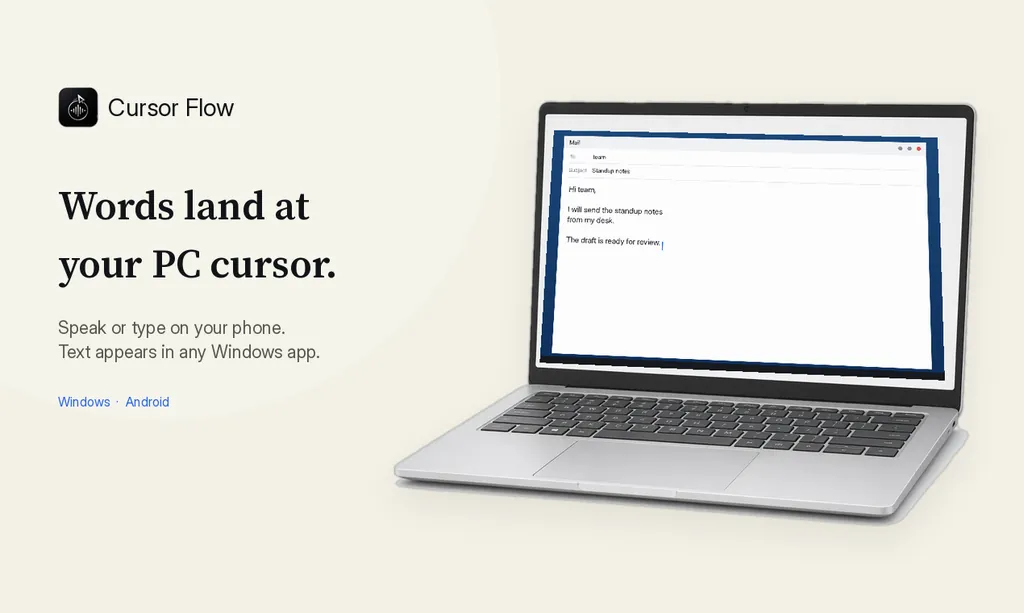
- Click into any text field, then speak or type. Speak softly into the phone held close, or type and tap Send. The words are typed at your PC cursor, in the app you already use.
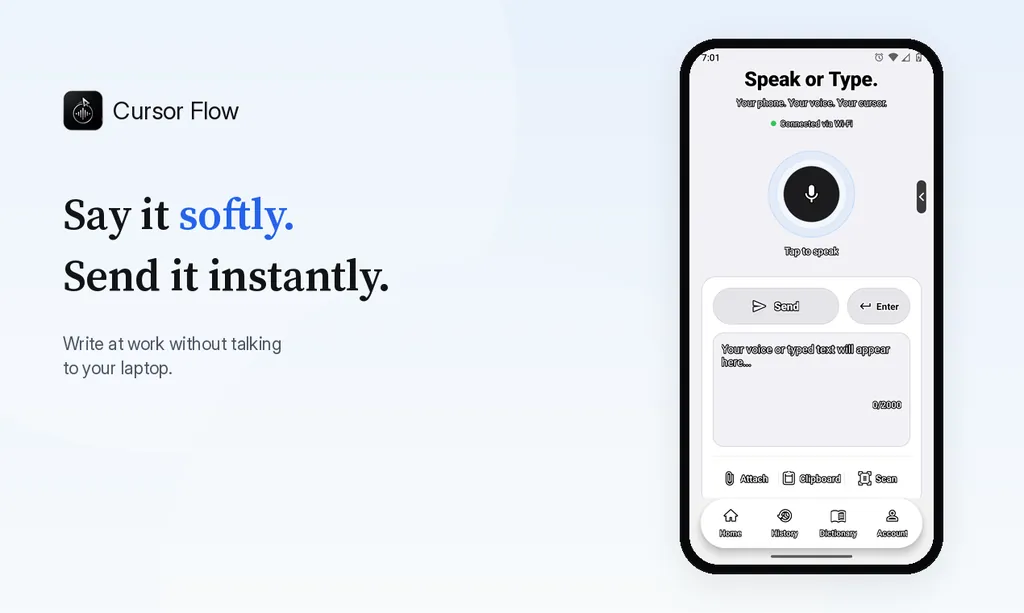
The free plan includes 2,500 dictation words a week, typing on your phone into your PC cursor, phone-to-PC files, images and clipboard, and Scan. See pricing, how phone to PC works, and typing at the cursor.
FAQ
Can I dictate a WhatsApp message from my Android phone to Windows?
Yes. Pair the phone and Windows PC in Cursor Fllow, open WhatsApp Desktop or Web, click the message field, and dictate from the phone. The result appears as normal text in the focused field.
Is a WhatsApp voice message the same as voice typing?
No. A voice message is audio for the recipient to play. Voice typing creates written text in the WhatsApp message box before you send it.
Does WhatsApp Desktop have its own voice typing button?
For a desktop typed-message workflow, use Windows Voice Typing or a tool such as Cursor Fllow. WhatsApp's voice message and transcript features solve different problems and do not automatically dictate a normal desktop reply.
Why did my dictated WhatsApp text go to the wrong chat?
The active caret controls the destination. A click, notification, or window switch may have changed focus. Stop, return to the intended chat, click its message field, and test with a short phrase.
Should I review a dictated WhatsApp message before sending it?
Yes. Read names, dates, numbers, links, and the recipient before pressing Send. Speech recognition can make mistakes, and Enter commonly sends a WhatsApp message.
- 57languages
- 2,500free words a week
- Windows + Androidone paired workflow