Cursor Flow
WO Mic Alternative for Voice Typing on a Windows PC
WO Mic turns your phone into a PC microphone for calls. If you want typed text instead, here is how a phone-to-PC dictation app compares.
On this page
I am Prince Ruhul, and I build Cursor Flow. That makes me biased, so I will tell you where WO Mic is the right pick too.
Why people look for WO Mic in the first place
Many desktop PCs, especially office and cyber-cafe machines in India and Bangladesh, have no microphone. Many laptop mics are weak or pick up fan noise. A phone is already in your pocket, so using it as the mic makes sense.
A Reddit user put it simply when recommending WO Mic to people without a mic: "Easy to use and you don't need to buy a mic" (Reddit).
What WO Mic actually does
According to the WO Mic website, it has three parts:
- An app on your phone that captures your voice.
- A client on your PC that receives the audio.
- A virtual device driver that makes the PC think a real microphone is plugged in.
It connects over USB, Bluetooth, Wi-Fi or Wi-Fi Direct on Android, and over Wi-Fi on iOS. Any PC program that uses a microphone can then use your phone.
So WO Mic sends sound. What happens to that sound is up to the program on your PC.
Two different jobs
People say "use my phone as a mic for PC" for two very different reasons:
| You want to... | What you need | Good fit |
|---|---|---|
| Talk on Discord, Zoom, Teams or Meet | Phone as an audio device | WO Mic or similar |
| Record a voice-over or a podcast | Phone as an audio device | WO Mic or similar |
| Type emails, chats and documents by voice | Text at the PC cursor | A phone-to-PC dictation app |
| Send photos, files and copied text too | A phone-to-PC workflow | A phone-to-PC app |
If you are in the first two rows, stay with WO Mic. This post is for the last two rows. There is a longer explanation in the two ways to use an Android phone as a PC mic.
Option 1: WO Mic plus Windows voice typing
You can combine them, and it costs nothing:
- Install the WO Mic app on your phone and the WO Mic client on your PC.
- Connect them and start the virtual mic.
- In Windows, open Settings > System > Sound and choose the WO Mic device as your input.
- Click into a text field and press Windows key + H to start voice typing.
What to expect:
- Windows voice typing needs an internet connection.
- It types what you said. On most PCs, "um" and "uh" stay in, and you may need to say punctuation unless you turn on automatic punctuation.
- Bangla is not in the Windows voice typing language list. Hindi is.
- You have two apps and a driver to keep working.
For many people this is enough. If it works for you, keep it.
Option 2: Send text, not audio
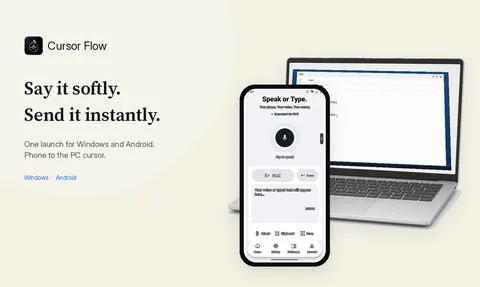
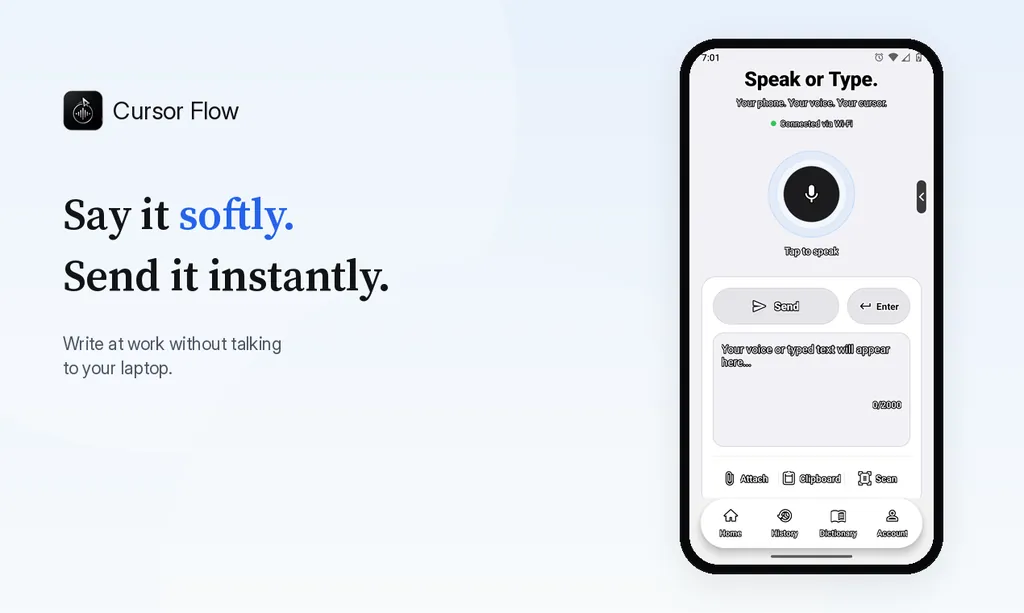
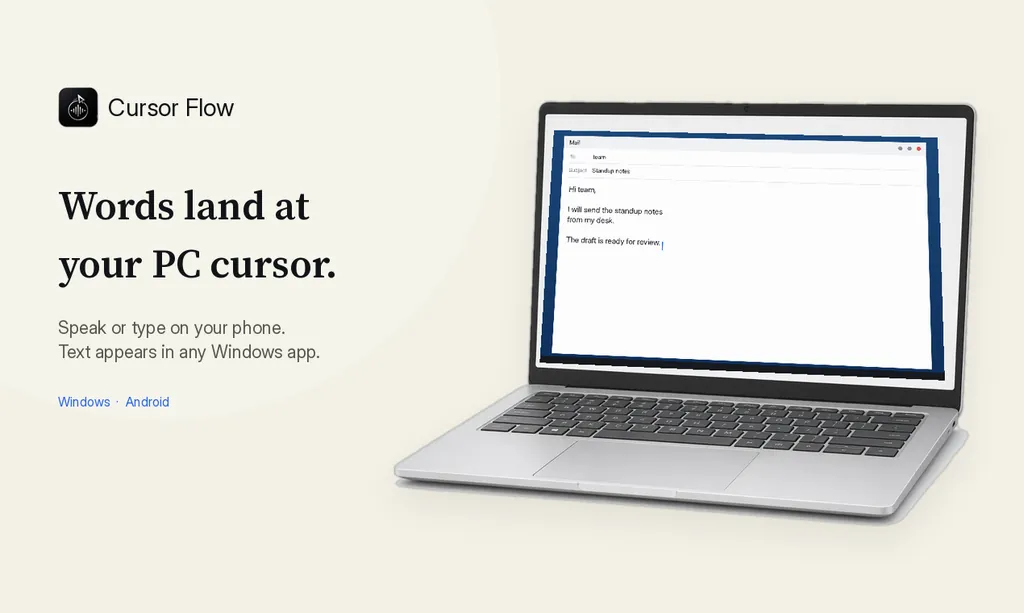
A phone-to-PC dictation app skips the virtual microphone. The phone listens, the speech becomes text, and the text is typed at your PC cursor.
Here is why that can be better for writing:
- No driver or sound settings: The PC does not need to see a microphone at all.
- Cleaner text: Cursor Flow removes filler words on every plan. On the Individual and Power plans, Cursor Flow AI also fixes obvious slips. You can set a style per app, for example casual in WhatsApp and formal in Outlook.
- Works in any app: The text is typed word by word into whatever has the cursor: Gmail, WhatsApp Web, Word, a CRM form.
- More than voice: The same pairing sends files, photos, clipboard and scanned pages to the PC.
I am not saying no other app does this. Other phone-to-PC dictation tools exist. Compare them on your own PC with your own voice.
Side by side
| WO Mic | Cursor Flow | |
|---|---|---|
| What it sends | Audio | Text, files, clipboard, scans |
| Best for | Calls, games, recording | Writing on the PC |
| PC side | Client and virtual mic driver | Windows app |
| Phone | Android and iOS | Android 9 or newer only |
| Connection | USB, Bluetooth, Wi-Fi | Same Wi-Fi, or over the internet |
| Filler words | Depends on the program you use | Removed |
| Typing on the phone | No | Yes, lands at the PC cursor |
A typical day with each setup
With WO Mic and Win + H: you open the WO Mic app on the phone and the client on the PC, connect them, check that Windows is using the WO Mic input, then press Win + H in your email. You speak, the words appear, and you delete a few "um"s and add punctuation where it was missed. At lunch, you need a photo from your phone on the PC, so you message it to yourself.
With a phone-to-PC dictation app: the phone and PC are already paired. You click into the email, tap the mic on the phone and speak. The text arrives without fillers. For the photo, you tap send in the same app and it lands in a folder on the PC.
Neither is wrong. The second saves steps if most of what you do is writing and moving things from phone to PC.
Which one should you choose?
- You only need a mic for calls or games: WO Mic.
- You have an iPhone: WO Mic, since Cursor Flow has no iPhone app yet.
- You want to write by voice on a PC with no mic: try a phone-to-PC dictation app.
- You want both: use both. They do different jobs.
How to do this with Cursor Flow
- Install Cursor Flow on your Windows 10 or 11 PC and your Android phone from the download page.
- Pair them once by scanning the QR code. The phone as microphone guide shows each step.
- On the PC, open Settings → Microphone and select your phone.
- Click into any text field on the PC.
- Hold the phone 10 to 20 cm from your mouth and speak normally or softly.
- Read the text before you send it. Fix names by keyboard if needed.
To send a photo, file or copied text instead, use the same app. The phone to PC page lists what you can send.
Quick fixes if text does not arrive
The PC shows nothing. Check that a text field is focused. If none is, Cursor Flow keeps the words back instead of typing them somewhere random, and it never types into password fields.
"Not connected" on the phone. Open both apps and sign in with the same account on each. Shared Wi-Fi gives the quickest link, and it works over the internet too.
Text in the wrong window. A click or a notification may have moved the focus. Lock Target keeps text going to the window you chose.
Misheard words. Move the phone closer, lower the noise around you, and put names and jargon into Vocabulary in Settings.
The phone app gets closed in the background. Battery savers on some Android phones close apps. Remove battery restrictions for Cursor Flow in the phone's settings.
A few honest limits: there is no Mac or iPhone app, the Windows app is in public beta and not code-signed yet, so SmartScreen may warn you during install. English is the most tested of the 57 languages. Use one language per dictation for the best results.
The free plan includes 2,500 dictation words a week, typing on your phone into your PC cursor, phone-to-PC sending of files, images and clipboard, and Scan. Paid plans are on the pricing page.
FAQ
Is WO Mic good for voice typing?
It can work. WO Mic makes your phone appear as a microphone on the PC, so you can then use Windows voice typing (Win + H) with it. You get the plain text that Windows voice typing produces.
What is the difference between WO Mic and a phone-to-PC dictation app?
WO Mic sends audio, so the PC sees a new microphone. A phone-to-PC dictation app like Cursor Flow sends text, typed at your PC cursor, after it removes filler words.
Should I switch from WO Mic for Discord or Zoom calls?
No. For calls, recording and games, you need the phone to act as an audio device, which is what WO Mic is built for. Cursor Flow does not replace that.
Does Cursor Flow work on iPhone?
Not yet. Cursor Flow needs an Android 9 or newer phone and a Windows 10 or 11 PC. WO Mic lists an iOS app, so it is the better fit for iPhone users who need a mic.
Is there a free plan?
Yes. The Cursor Flow free plan includes 2,500 dictation words a week, typing on your phone into your PC cursor, phone-to-PC sending of files, images and clipboard, and Scan, with no card needed.
- 57languages
- 2,500free words a week
- Windows + Androidone paired workflow