Cursor Flow
Phone Link Alternatives for Android and Windows 11
Phone Link not supporting your phone, or missing features? Compare Quick Share, KDE Connect, cloud storage and Cursor Flow for Android to Windows.
On this page
- What Phone Link does, and its limits
- Alternative 1: Quick Share for Windows (Google)
- Alternative 2: KDE Connect
- Alternative 3: Cloud storage
- Alternative 4: Cursor Flow
- Comparison
- Which should you pick?
- How to set up a combination that works
- Privacy and security checklist
- How to do this with Cursor Flow
- FAQ
- Keep reading
I build Cursor Flow, so I am biased. Facts about the other tools come from their official pages, checked on 10 November 2026.
What Phone Link does, and its limits
Microsoft's Phone Link connects Android phones to Windows for notifications, messages, calls and photos. From Microsoft's requirements page:
- Windows 10 (October 2022 update or later) or Windows 11.
- Android 10 or later.
- Phone and PC on the same Wi-Fi, unless you turn on syncing over mobile data.
Some features depend on your phone. Microsoft's cross-device copy and paste page says that feature works on Surface Duo and select Samsung, HONOR, OPPO, ASUS, vivo and Xiaomi devices, only for text and images, with images over 1 MB resized.
If you have a supported Samsung phone, Phone Link may be all you need. Many people with other phones find key features missing.
Alternative 1: Quick Share for Windows (Google)
Best for sending files to a nearby PC.
From Google's Quick Share page:
- 64-bit Windows 10 and up; Quick Share is already on Android 6+.
- Wi-Fi and Bluetooth on, devices within about 5 metres.
- End-to-end encrypted, and you confirm each transfer.
- Works both ways: Android to PC and PC to Android.
- Meant for non-Samsung PCs; Samsung PCs should use Samsung's Quick Share app.
Limits: it is for sharing, not for notifications, messages or typing.
Alternative 2: KDE Connect
Best for an all-round, free connection.
From the KDE Connect site:
- Free and open source.
- Windows version on the Microsoft Store or as an installer; Android app on Google Play and F-Droid. Also Linux, macOS and iOS.
- Share files and links, sync phone notifications to your desktop, reply to text messages from the computer, control media, use your phone as a presentation remote or virtual trackpad, and run custom commands.
Limits: setup can take more steps than built-in tools, and features can differ between platforms.
Alternative 3: Cloud storage
Google Drive, OneDrive and similar services work with any phone and any PC, anywhere. They are good for files you want to keep, less good for quick back-and-forth.
Alternative 4: Cursor Flow
Best for writing on your PC from your phone, plus files and clipboard.
Cursor Flow pairs an Android 9+ phone with a Windows 10 or 11 PC by QR code (see pairing). Then you can:
- Type or speak on your phone and the text appears at your PC cursor in any app. You can speak softly with the phone held close, which suits shared offices.
- Send files from phone to PC, up to 1 GB each, saved to a PC folder. See file transfer.
- Copy and paste both ways between phone and PC.
- Scan pages into one PDF and send it to the PC.
- Press Enter from the phone.
It works over office Wi-Fi, and over the internet when phone and PC are on different networks.
Limits: it does not mirror notifications, messages or calls. File send is phone to PC only in this version. No iPhone support. Public beta. Paid features are listed on our pricing page.
Comparison
| Need | Phone Link | Quick Share | KDE Connect | Cursor Flow |
|---|---|---|---|---|
| Notifications on PC | Yes | No | Yes | No |
| Send files phone to PC | Photos; drag and drop on select phones | Yes | Yes | Yes (up to 1 GB) |
| Clipboard sync | Select brands | Clipboard share on select Android 13+ | Not listed on home page | Yes |
| Type on PC from phone | No | No | Not listed (trackpad and remote listed) | Yes |
| Voice to PC cursor | No | No | No | Yes |
| Works off same Wi-Fi | With mobile data sync | Nearby only | VPN support | Yes, over internet |
| Cost | Free | Free | Free | Free plan; paid plans |
Which should you pick?
- Supported Samsung phone: stick with Phone Link.
- Mostly files, nearby: Quick Share.
- Notifications and remote control, free: KDE Connect.
- Writing on your PC from your phone, quietly, plus files and clipboard: Cursor Flow.
You can combine them. Many people use Quick Share for big files and another tool for text. See everything Cursor Flow does phone to PC.
How to set up a combination that works
Most people do not need one tool for everything. A simple setup that covers most needs:
- Keep Phone Link for notifications and calls if it supports your phone well.
- Add Quick Share for large files when your phone and PC are close to each other.
- Use one tool for text, whether that is Phone Link's clipboard on a supported phone or a phone-to-PC typing app.
Turn off overlapping features so you do not get two notifications for every message. In Phone Link, you can switch features on and off under Settings > Features, as Microsoft describes on its setup page.
Privacy and security checklist
Any app that connects your phone to your PC can see some of your data. Before installing:
- Check who makes it and where it is downloaded from.
- Read what it stores and for how long.
- Review the permissions it asks for on both devices.
- Remove old pairings for devices you no longer use.
How to do this with Cursor Flow
- Install both apps. Get Cursor Flow for Windows and Android from the download page.
- Pair once. Open the phone app and scan the QR code shown on your PC. See pairing if you get stuck.
- Click into any text field, then speak or type. Speak softly into the phone held close, or type and tap Send. The words are typed at your PC cursor, in the app you already use.
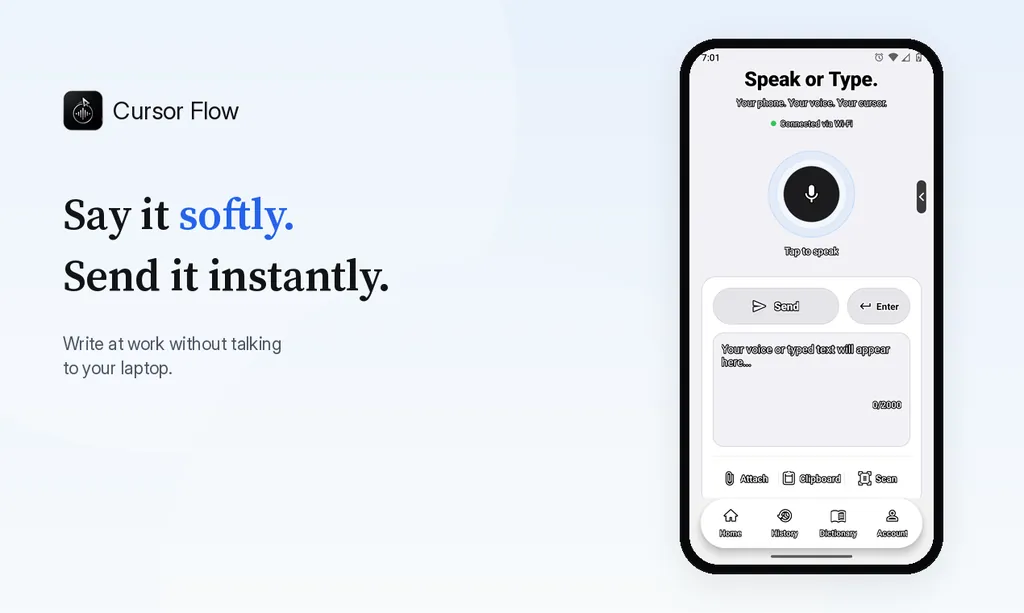
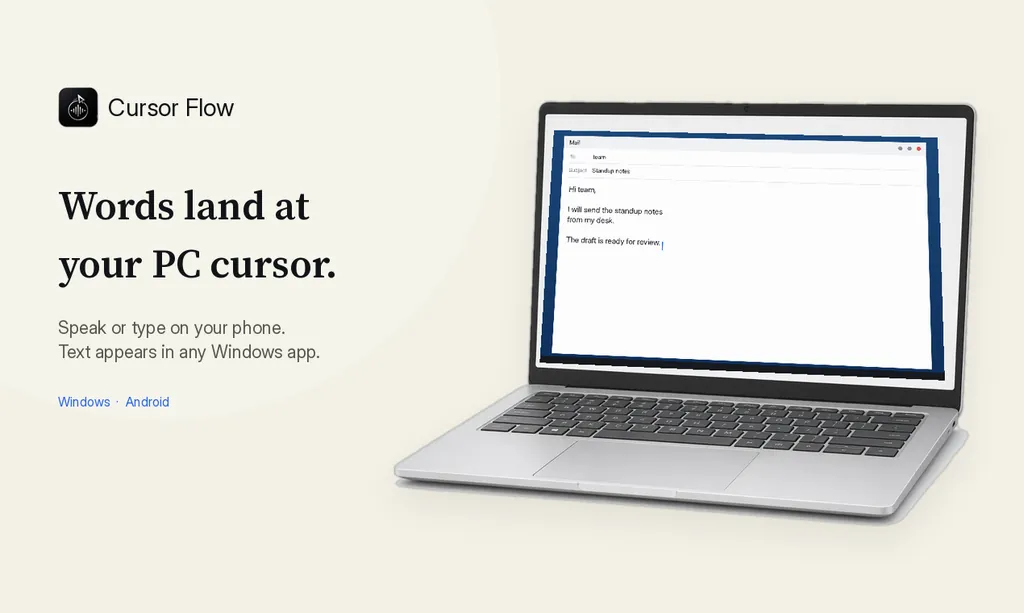
The free plan includes 2,500 dictation words a week, typing on your phone into your PC cursor, phone-to-PC files, images and clipboard, and Scan. See pricing, how phone to PC works, and typing at the cursor.
FAQ
Why look for a Phone Link alternative?
Some Phone Link features, like cross-device copy and paste, only work on selected phone brands. It also needs Android 10 or later and, by default, the same Wi-Fi.
What is the best free Phone Link alternative?
For files, Google's Quick Share for Windows. For a wider set of features like notifications and links, KDE Connect is free and open source.
Can Phone Link alternatives type on my PC from my phone?
Some can. Cursor Flow is built for it: type or speak on your Android phone and the text appears at your PC cursor.
Do I need to uninstall Phone Link?
No. You can use Phone Link and another tool side by side. Turn off features you do not use to avoid duplicate notifications.
Want your phone to write on your PC? Download Cursor Flow and pair it in about two minutes.
- 57languages
- 2,500free words a week
- Windows + Androidone paired workflow