Cursor Flow
Windows Voice Typing Not Working? Fix Win+H in 8 Steps
Win+H does nothing, or voice typing will not hear you? Fix Windows 11 and 10 voice typing: internet, mic permissions, default mic, language and more.
On this page
- Quick check: what is happening?
- Step 1: Put the cursor in a text box
- Step 2: Check your internet connection
- Step 3: Allow microphone access
- Step 4: Pick the right default microphone
- Step 5: Wait for "Listening..."
- Step 6: Improve what the mic hears
- Step 7: Fix the language
- Step 8: Turn on automatic punctuation
- Still not working?
- Alternatives when Win+H will not cooperate
- Keep voice typing working
- How to do this with Cursor Flow
- FAQ
- Keep reading
The steps follow Microsoft's Use voice typing to talk instead of type and microphone permissions pages, checked on 10 November 2026.
Quick check: what is happening?
| Symptom | Try |
|---|---|
| Win+H does nothing | Steps 1, 2 |
| Voice typing opens but shows an error | Steps 3, 4 |
| It hears you but types nonsense | Steps 5, 6 |
| Wrong language | Step 7 |
| No punctuation | Step 8 |
Step 1: Put the cursor in a text box
Microsoft says your cursor needs to be in a text box. Click into the place you want to type, like an email body or a document, then press Windows key + H. If focus is on the desktop or a button, nothing happens.
On a touch screen, you can also press the microphone button on the touch keyboard.
Step 2: Check your internet connection
Microsoft states that voice typing uses online speech recognition, so it needs internet. If you are offline, on a captive Wi-Fi network, or a firewall blocks the service, it will not work. Open a website to confirm you are online. Some work networks block it; ask IT if voice typing works at home but not at the office.
Your PC may also have an Online speech recognition setting under Settings > Privacy & security > Speech. If you see it, make sure it is on.
Step 3: Allow microphone access
On Windows 11:
- Select Start > Settings > Privacy & security.
- Under App permissions, select Microphone.
- Turn on Microphone access.
- Turn on Let apps access your microphone.
- Turn on Let desktop apps access your microphone.
On Windows 10, go to Start > Settings > Privacy > Microphone and turn on the same toggles. Note that Microsoft ended free support for Windows 10 on 14 October 2025, so some newer fixes only arrive on Windows 11.
Step 4: Pick the right default microphone
Open voice typing with Win+H, select the gear icon and check Default microphone. If you have a webcam, headset and laptop mic, voice typing may be listening to the wrong one. You can also check Settings > System > Sound > Input to see which mic is active and whether its level moves when you speak.
Step 5: Wait for "Listening..."
Voice typing starts listening automatically, but Microsoft says to wait for the "Listening..." alert before you speak. If you start too early, the first words are lost and the rest may come out wrong.
Step 6: Improve what the mic hears
If text is garbled:
- Move the mic closer to your mouth. Laptop mics are far away and pick up the room.
- Close apps that play sound, or use headphones.
- Speak in full phrases at a steady pace.
At a shared desk, speaking loudly enough for a laptop mic can feel awkward. A headset, or your phone used as a close mic, helps. More on that in our Win+H vs dictation apps comparison.
Step 7: Fix the language
Voice typing follows your input language. To switch, press Windows key + Spacebar or use the language switcher on the taskbar. To add a new one, go to Start > Settings > Time & language > Language & region > Add a language.
Check Microsoft's supported list too. Windows 11 voice typing supports many languages, including English variants, Hindi, Japanese and most European languages, but not every language on Earth. For example, Bengali is not on the list as of this writing.
Step 8: Turn on automatic punctuation
If voice typing writes one long sentence, open it with Win+H, select the gear icon and turn on Automatic punctuation. You can also say punctuation, and use commands like "delete that" or "select that". Say "stop listening" to stop.
The same settings menu has the voice typing launcher, a small button that appears in text boxes, and filter profanity.
Still not working?
- Restart your PC: It clears stuck audio services.
- Update Windows: Settings > Windows Update.
- Update audio drivers from your PC maker's website.
- Test the mic in another app, like Sound Recorder or a video call. If it fails everywhere, it is hardware or drivers.
Alternatives when Win+H will not cooperate
- Fluid dictation is a newer Windows voice typing feature on Copilot+ PCs that corrects grammar, punctuation and filler words. Microsoft says it is only on Copilot+ PCs.
- Dictation apps: These type at your cursor in any app and add their own cleanup. Cursor Flow is one; it runs on Windows 10 and 11, removes filler words and has an offline mode where recognition runs on your PC. You can also use your Android phone as a close mic, which helps if your laptop mic is the problem. See the Windows dictation app page.
Keep voice typing working
- Install Windows updates regularly, especially on Windows 11, which still gets new voice typing features.
- Keep one default microphone so Windows does not switch inputs when you plug in a headset.
- Turn on the voice typing launcher in settings if you forget the shortcut. Microsoft says it lets you start voice typing quickly when you are in a text box.
How to do this with Cursor Flow
- Install both apps. Get Cursor Flow for Windows and Android from the download page.
- Pair once. Open the phone app and scan the QR code shown on your PC. See pairing if you get stuck.
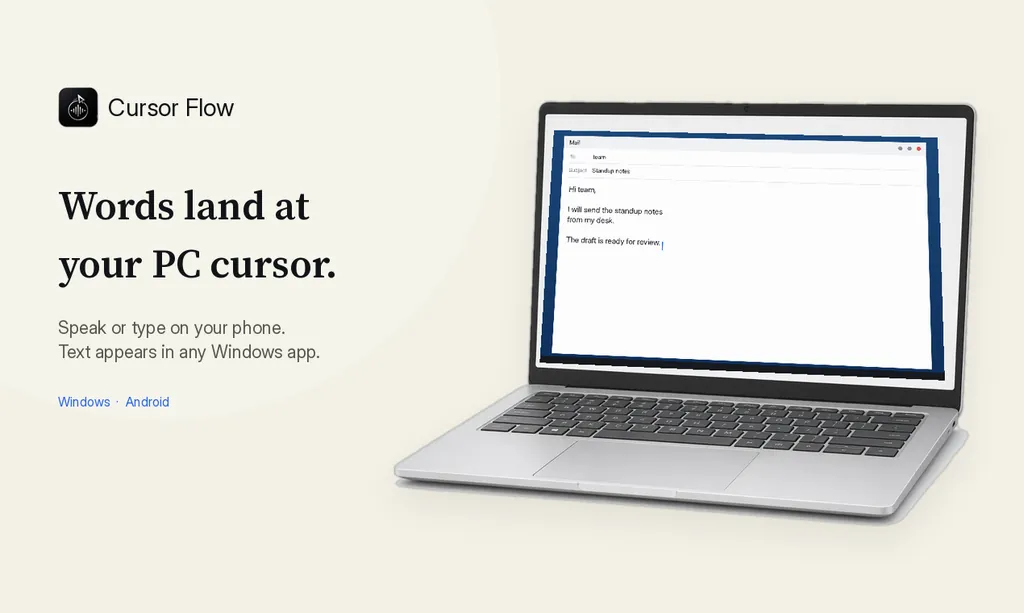
- Click into any text field, then speak or type. Speak softly into the phone held close, or type and tap Send. The words are typed at your PC cursor, in the app you already use.
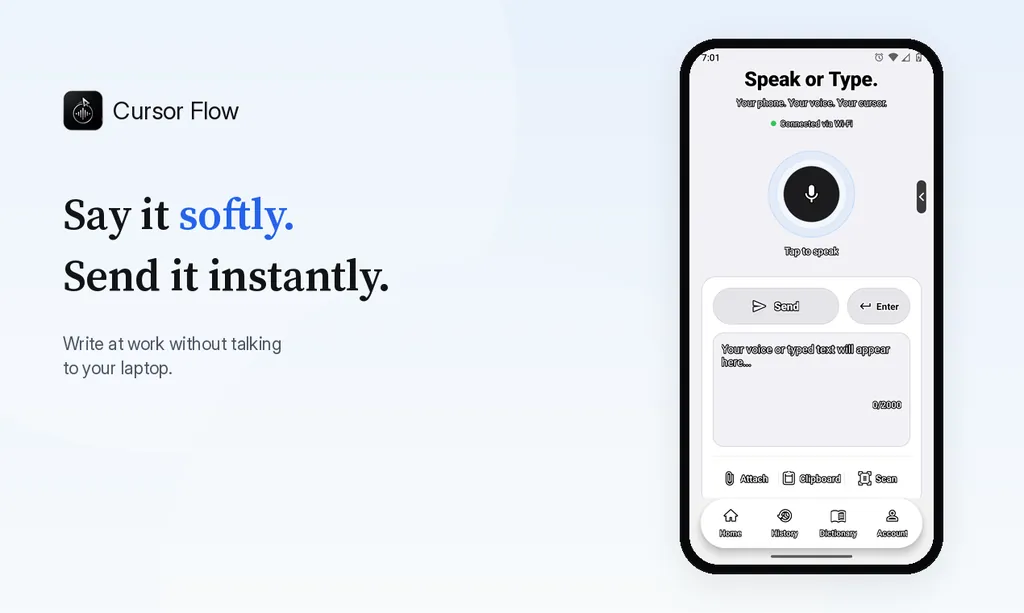
The free plan includes 2,500 dictation words a week, typing on your phone into your PC cursor, phone-to-PC files, images and clipboard, and Scan. See pricing, how phone to PC works, and typing at the cursor.
FAQ
Why is Win+H not working?
The cursor may not be in a text box, the PC may be offline, or the microphone may be blocked in Privacy settings. Click into a text field first, then press Windows key + H.
Does Windows voice typing work offline?
No. Microsoft says voice typing uses online speech recognition and needs an internet connection.
Why does voice typing type in the wrong language?
Voice typing follows your input language. Switch it with Windows key + Spacebar, and check that the language is on Microsoft's supported list.
How do I turn on automatic punctuation?
Open voice typing with Windows key + H, select the gear icon and turn on Automatic punctuation.
If you want dictation that also works offline and with your phone as the mic, try Cursor Flow free.
- 57languages
- 2,500free words a week
- Windows + Androidone paired workflow