 Cursor Flow
How to Voice Type Telegram Messages from Android Phone to Windows
Use an Android phone as the microphone while writing a normal Telegram Desktop or Web message on Windows. Learn pairing, focus checks, review steps, and fixes.
On this page
- Why use a phone for Telegram typing on Windows?
- Voice message versus typed dictation
- What you need
- Set up Telegram voice typing from your Android phone
- Dictate and review a Telegram message
- Cursor Fllow versus Windows key plus H
- Common Telegram voice typing problems
- Privacy and safety
- A simple daily routine
- How to do this with Cursor Flow
- FAQ
- Keep reading
This workflow creates a written Telegram message. It is not the same as recording a Telegram voice message, and it is not the same as transcribing audio that someone else sent you.
Why use a phone for Telegram typing on Windows?
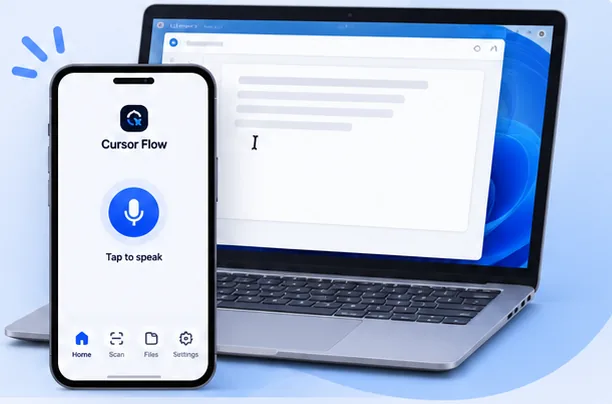
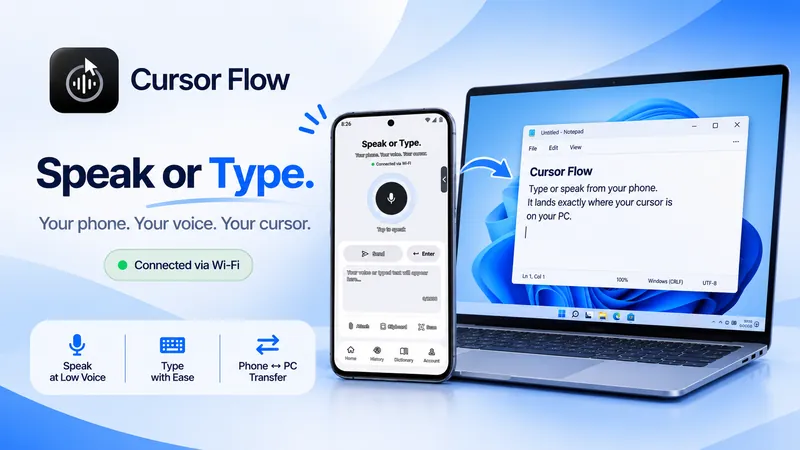
A Windows laptop may have a distant microphone, a noisy fan, or no reliable microphone at all. Your Android phone is often closer to your mouth and easier to position. Cursor Fllow lets you speak into that phone while the final text appears where your cursor is active on the PC.
Telegram itself supports Android, Windows, macOS, Linux, and Telegram Web. Its official FAQ also says you can use the same account on multiple devices and that cloud chats sync across them. That makes Telegram Desktop a practical place to review and send a message after dictating it from your phone.
Voice message versus typed dictation
| Method | What the recipient gets | Best use |
|---|---|---|
| Telegram voice message | An audio recording | When the other person is happy to listen |
| Android keyboard dictation | Text inside the phone app | When you are writing in Telegram on the phone |
| Cursor Fllow phone-to-PC dictation | Text inside the focused Telegram Desktop or Web field | When you want to work from the Windows screen but speak into the phone |
| Windows Voice Typing | Text from the PC microphone | When the PC microphone and room are suitable |
Choose the typed workflow when the message should be easy to scan, search, quote, or edit. Choose a voice message when the sound of your voice is part of the message.
What you need
- A Windows PC with Telegram Desktop or Telegram Web.
- An Android phone with Cursor Fllow installed.
- Cursor Fllow installed on Windows.
- The phone and PC paired in the same Cursor Fllow account.
- A Telegram chat where you can test a short sentence.
Telegram account linking is separate from Cursor Fllow pairing. Sign in to Telegram Desktop or Web first. Cursor Fllow then handles the phone-to-PC text path.
Set up Telegram voice typing from your Android phone
- Install Cursor Fllow: Get the Windows and Android apps from the official download page.
- Pair the devices: Follow the pairing guide and wait for the connected status.
- Open Telegram on Windows: Use Telegram Desktop or Telegram Web and finish Telegram's own sign-in process.
- Choose one chat: Open a private chat, group, or saved messages chat for testing.
- Click the message box: Confirm that the caret is blinking in the composer before you speak.
- Say a short test sentence: Check that the text appears in the selected Telegram chat.
The blinking caret matters. Cursor Fllow follows the active text field, so the correct Telegram window alone is not enough. The message composer must be focused.
Dictate and review a Telegram message
For a reliable workflow, compose in small sections instead of dictating a long paragraph and sending it immediately.
- Open the intended Telegram chat on Windows.
- Click the composer and check the caret.
- Speak the first sentence into your Android phone.
- Read the text that appears on Windows.
- Continue with the next section.
- Check names, dates, numbers, links, and the chat title.
- Press Send only after the message is final.
For example, you can dictate: “I will send the revised document this afternoon.” Stop and check the sentence. Then add the file name or meeting time. This gives you a chance to catch a speech recognition error before it becomes a sent message.
Cursor Fllow versus Windows key plus H
Windows Voice Typing can work directly in a Telegram text box. Click the composer and press Windows key + H. It uses the PC microphone and requires the Windows voice typing service to be available.
Cursor Fllow is useful when you want the Android phone to be the microphone. That can be more comfortable in a shared office or when the PC microphone is far away. Both methods still need the correct Telegram field to be focused.
| Option | Best fit | What to watch |
|---|---|---|
| Cursor Fllow | Speak into Android and write at the Windows cursor | Pairing and field focus must be correct |
| Windows Voice Typing | Use the PC microphone at a quiet desk | Microphone permissions, internet, and Win+H |
| Telegram voice message | Send audio instead of a written message | The recipient must listen, and editing is limited |
Common Telegram voice typing problems
Privacy and safety
Your final message is still visible on the Windows screen and is sent to the Telegram chat when you press Send. Do not dictate passwords, one-time codes, or private keys into a message. For work, medical, financial, or customer information, follow your organisation's rules before using any speech-to-text workflow.
If you use Telegram on a shared Windows computer, lock the session when you finish. Telegram's official FAQ notes that multiple devices can stay signed in, so review active sessions when the computer is not yours.
A simple daily routine
- Open Telegram Desktop or Web.
- Select the correct chat.
- Click the message composer.
- Confirm the phone and PC are connected.
- Dictate one short sentence.
- Review the text on Windows.
- Continue in small sections.
- Check the recipient and details.
- Send only after the final review.
Cursor Fllow is most useful here as a phone-to-PC writing bridge. It lets you speak naturally on Android while keeping the final Telegram message, chat context, attachments, and send control on the Windows screen.
For related workflows, read the WhatsApp voice typing guide, the Slack guide, and the text not appearing troubleshooting guide. You can also review Cursor Fllow plans.
How to do this with Cursor Flow
- Install both apps. Get Cursor Flow for Windows and Android from the download page.
- Pair once. Open the phone app and scan the QR code shown on your PC. See pairing if you get stuck.
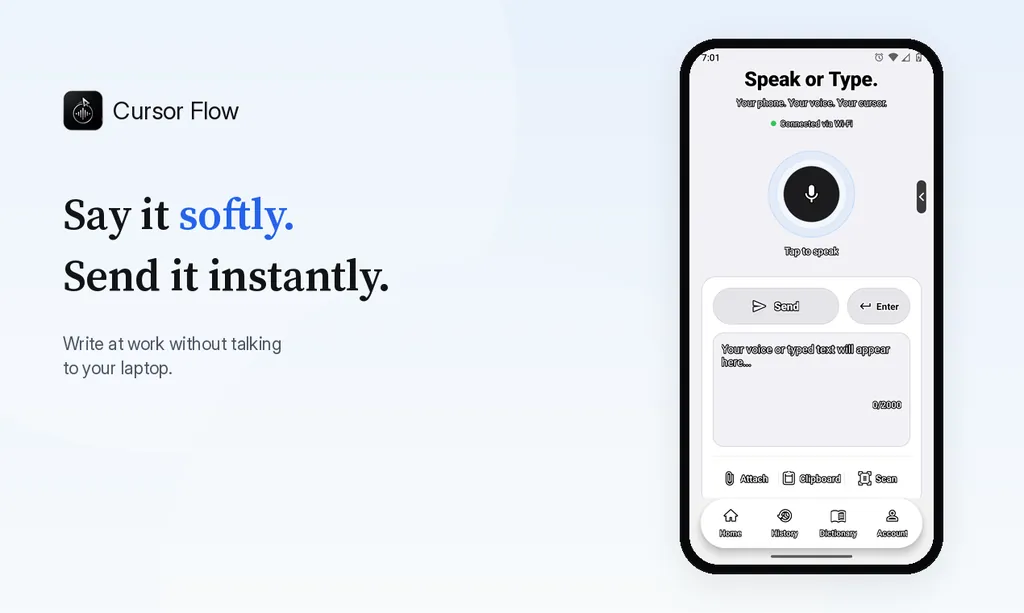
- Click into any text field, then speak or type. Speak softly into the phone held close, or type and tap Send. The words are typed at your PC cursor, in the app you already use.
The free plan includes 2,500 dictation words a week, typing on your phone into your PC cursor, phone-to-PC files, images and clipboard, and Scan. See pricing, how phone to PC works, and typing at the cursor.
FAQ
Can I voice type a Telegram message from Android to Windows?
Yes. Pair the Android phone and Windows PC in Cursor Fllow, open Telegram Desktop or Web, click the message composer, and dictate from the phone. The result appears as text in the focused field.
Does this send a Telegram voice message?
No. Cursor Fllow creates written text in the Telegram composer. You can review and edit it before pressing Send. A Telegram voice message is a separate audio feature.
Can I use Telegram Desktop and my Android phone at the same time?
Telegram's official FAQ says the same account can be used on multiple devices, with cloud chats syncing across them. Cursor Fllow pairing is a separate step for sending dictated text from the phone to the Windows field.
Why did my words appear in the wrong Telegram chat?
The active caret controls the destination. A notification, window switch, or click may have changed focus. Return to the intended chat, click its message composer, and test with a short phrase.
Should I check a Telegram message before sending it?
Yes. Review the recipient, names, dates, numbers, links, and attachments. Speech recognition can make mistakes, and the Send action should be the last step.
- 57languages
- 2,500free words a week
- Windows + Androidone paired workflow
 Cursor Flow